This problem isn't cool. It's not cool at all. Even if this problem was stated to be cool by the Fonz himself this problem wouldn't be cool. What is the problem? Windows 8 wifi drivers and certain wireless access points. Let's get into it.
I love Windows 8. I do. Heck, I'm a shill for Microsoft Windows 8. Do I love the start screen? Yes I do. Do I love the graphical design? Yes I do. Do I love the how "things just work" in Windows 8? Yes I do. It's true. It's true. Is Windows 8 perfect? No it's not. It is getting there though. That's another blog post for another time though. What I've encountered thus far in my Windows 8 love and experience is a problem with Windows 8 wifi drivers working with access points. At my house, my Lenovo Windows 8 ultrabook works excellent with my wireless network. I have a Netgear wireless router and my Win 8 ultrabook "just works" with it. No problem at all. Now, at work, we have BYOD so I take my ultrabook to work with me; it will not "just work" with the access point. I have a coworker who also loves Windows 8. Guess what? Her HP tablet pc will not "just work" with the access point either. Those are the only two Windows 8 devices currently at work so that is the extent of my first-hand experience with the problem, but if you "bing" or "google" something along the lines of my problem there are many other people having the same issue.
Specifics
The Windows 8 laptops will only get a limited connection to the wireless network. Running the troubleshooter will "fix" the problem for about 3 minutes then the device is back to limited. The troubleshooter says "Not a valid IP configuration: fixed" and "no default gateway: fixed." Then you have full connection for 0 to 3 minutes before it goes back to limited. Bizarre (to me anyway). Right off I thought it would be a driver issue. I updated the drivers to the latest and greatest for the Intel Centrino Wireless-N 2230. Didn't work. I uninstalled the Windows 8 driver then installed the Windows 7 driver for the device. That didn't work either (so I went back to the Windows 8 driver). I made sure the power management was correct, i.e., the laptop couldn't turn off the adapter to save on power. That didn't work either.
* at this point I think I should mention that, yes, all other laptops and wireless devices connected and functioned perfectly on the wireless network*
What could be causing the intermittent issue? Especially since it's only Windows 8? I'm not sure why I went here, but I went into the settings for the WAP. Perhaps the firmware for this Netgear model didn't want to play nicely with Windows 8? It's possible given the age (a few years old). I updated the firmware on the device. That didn't fix the issue. My frustration was quite high to say the least. So, I scoured the tech forums. Oddly enough, I did find something I hadn't tried that someone had tried which was changing the channel/frequency setting in the WAP from auto to, in his case, channel 6. That worked for him. I gave it a shot. Guess what? It worked for nearly an hour then the ultrabook just disconnected. It didn't even go to limited. It just disconnected. I changed to other channels only to find the same disappointment.
Stupid things I tried that obviously didn't fix the issue:
Turning off the firewall
Disabling other network adapters besides the Intel Centrino
Resetting WinSock
*****UPDATE*****
I had a motorola WAP on the hardware shelf. I added it and configured it to the network and, to no surprise, the Win 8
laptops connected quick, working just like they're supposed to. What
I've concluded from this problem is the Win 8 wifi drivers just aren't
playing nice with all WAPs. I wonder why?
Thoughts? Anyone?
Showing posts with label Windows 8. Show all posts
Showing posts with label Windows 8. Show all posts
Monday, April 8, 2013

Thursday, March 28, 2013
A reveiw of training guide: configuring windows 8

Are you an IT rookie or Pro looking to get a firm understanding of how to implement Windows 8 in the enterprise? Or are you a geek who just wants to know how Windows 8 works? If you're in any of the two mentioned groups you will get a firm understanding of Windows 8 due to the excellent writing, questions, and lab exercises in Training Guide: Configuring Windows 8. How does this book differ from other books on Windows 8? I think it differs in the writing style and the structure of the book. I have read other books on Windows 8 that are focused on tips and tricks; focused on the expert IT pro; and one that covered every "bit" of Windows 8. Yes, those other books have their purpose and that's fine, but this book is aimed at "teaching" the reader Windows 8 from the "surface" level to the advanced level without going off on unnecessary tips and theory.
The authors clearly know their subject, but they don't beat you down with it. Also, the authors offer real-world examples and tell the reader what is necessary for learning Windows 8. I really like that. When I read a training guide, I only want to know how the hardware/software functions and how to make it work for my environment. When I want to read the theory of the technology I go to a different kind of book. I like that this book at the beginning of each lesson tells the reader what he or she should know by that point, what is required for the lesson suggestions and labs, and that at the end of each lesson is a lesson summary. Throughout each lesson there are real-world examples and quick hits of information related to the topic of the lesson.
Are there any cons to this book? I gave an honest consideration to this and I did think of a con. I think there could have been more questions at the end of each lesson. Each lesson ended with 2 to 5 questions. While there could have been more, I don't think this does any damage to the book. The amount of questions asked still help the reader to reflect on the lesson learned so it's not a con that takes away a rating star.
While this book lets you know in the beginning it's not intended as a sole source for the Windows 8 exam, it does cover some of the required topics for the Window 8 exam so this is a great addition to your study tools for the exam. I think the lab exercises will help you as well.
Anyway, rambling aside, grab this book to learn about Windows 8. In my mind it's currently the best book available to train you on how to use Windows 8. Hey, I bet you'll even have fun doing it.
Tuesday, March 5, 2013
Currently Reading Training Guide: Configuring Windows 8

Training Guide: Configuring Windows 8
The authors clearly know their subject. I've learned a lot from this book on how to implement Windows 8 in the enterprise and SMB. Lessons, practices, and exercises are the model and the authors have worked this model in an excellent way. The writing is top notch as well. Tech books have an image (no pun intended) of bad writing, i.e., dry, only writing what's necessary, but that can't be said of this book. The writing keeps me interested.
I'm only about 1/4 of the way through the book and what's funny is I don't want it to be over. I actually look forward to studying this book and doing the exercises. I highly recommend this book for the IT professional wanting an understanding of how to roll out then maintain Windows 8 in the business level and for the geek who just wants to know how it works.
When I'm finished with the book I plan on writing a full review.
Wednesday, October 24, 2012
Resources on Windows 8
It's coming. Two days until it's here. What am I talking about? Why, I'm talking about Windows 8. It's a sexy beast and you're going to need to know about it because it's the next big thing.
Windows 8 Resources
Free ebook from Microsoft Press: Introducing Windows 8
Free videos from Total Seminars' Mike Myers on Windows 8
My IT Forum's best Windows 8 Resources
Enjoy!
Windows 8 Resources
Free ebook from Microsoft Press: Introducing Windows 8
Free videos from Total Seminars' Mike Myers on Windows 8
My IT Forum's best Windows 8 Resources
Enjoy!
Monday, August 20, 2012
Windows 8 Shortcut Keys and Start Screen Editing
Stepping Into The Windows 8 Pool Part 2
Ah yes. You feel the breeze? It's nice isn't it? The water is feeling good. You're relaxed just hanging out on the steps in the shallow end of the pool when suddenly you're beaned in the head with a volleyball. You look around for the attacker and you realize it came from that annoying kid in the pool named "Finance App." You've heard about him. He's annoying. Sticking his tongue out at you. Making jokes and being all financey and stuff. Well, there's something we can do about that. If you cool down, stay calm, and hangout with me for a second I'll let you know how. I'm about to give you a rundown on some Start Screen Basics. Here we go.
La-la-laaaa! Start Screen Basics
In the last post I wrote about some of the popular Start Screen apps that are pinned to the Start Screen by default. These are apps pre-pinned to appeal to a wide audience. There are some apps here that I don't want on my Start Screen. They're annoying. Telling me about Finance stuff I don't care about or how about that useless Sports app (it's useless because it doesn't include the greatest sport of all time - pro wrestling)? Maybe you are interested in those, which is fine. The steps taken to personalize your Start Screen are universal for all apps whatever you decide to keep, remove, or add. Before we get into that though, we need to learn how to maneuver around the Start Screen first.
Windows 8 Keyboard Shortcuts
TechRepublic blogger Greg Shultz released a Windows 8 keyboard shortcut cheatsheet that included 100, count'em 100, keyboard shortcuts for Windows 8. I'm not going to list all 100 here in this post, but do know that you can download the PDF by clicking here or on the link provided at the end of this post.
Most people love shortcuts. I can't think of a better place to use shortcuts than in a computer because, let's face it, we don't want to take the long way clicking through a long breadcrumb-trail when a simple and fun shortcut can get us there quicker. In this post I'll go over my favorite (since they're my favorite I just know they'll be your favorite) Windows 8 keyboard shortcuts for maneuvering around the Start Screen and then a few more that will be handy for other tasks. So, strap on your seatbelt, ease your seat back, and put into gear because we're about to take off. (was that overly cheesy?)
! note: In case you don't know where the windows key is on the keyboard check out this image

1. Windows Key (from here on WK) = Switch between Metro Start Screen and last accessed app
2. WK + C = Access the Charms bar
3. WK + I = Access the Settings Charm
4. WK + K = Access Devices Charm
5. WK + Q = Access Apps Search Screen
6. WK + F = Access Files Search Screen
7. WK + X = Access Windows Tools Menu
8. WK + E = Open My Computer
9. ESC = Close a Charm
10. WK + CTRL + B = Access a program that is displaying a message in the Notifications Area
Bonus (these aren't for maneuvering around Start, but they're very helpful shortcuts)
CTRL + A = Highlight/Select All Items
CTRL + C = Copy the selected item
CTRL + V = Paste the selected item
CTRL + X = Cut the selected item
CTRL + D = Delete the selected item
CTRL + Z = Undo action
While the entire list is worth checking out, the above shortcuts are ones I highly recommend committing to memory because you'll be accessing these places often and learning the above shortcuts will help you be more efficient. Now, let's personalize this sucker.
Personalization
Now we're into the subjective side of things. I'll go over trimming and expanding the "stuff" on your Start Screen then color and design.
Right-click on one of your large apps (by large I mean rectangle) and look at the options that appear at the bottom of your screen. You have the option to make the app smaller. Click on "smaller" and see what happens. Da-da! It's now a square instead of a rectangle. Right-click on the same app and now the option to make it larger is available.
Now, let's eliminate some of the apps that will never be used on the Start Screen. For my experience, the app I'll unpin for this example will be the finance app and a few others I know I won't use. Right-click on the Finance app. The options available are: unpin from start, uninstall, smaller, and turn live tile off. It's not taking up too much space and there's a possibility I might want to use it in the future so I'll just unpin it from the Start Screen. If I knew for certain I wouldn't ever use it then I would have went with uninstall. To add an app to the Start Screen there are a few ways. I will go with the "from the Start Screen..." way since this section is on the Start Screen. Right-click in a blank area. Click on "all apps" to show all the apps. Right-Click on "command prompt" for this example and look at the options below. Click on "pin to start." Now click the WK to go back to the start screen. Hey check it out! Our app is on the Start Screen. If it's not in the location you want it to be in then click and hold the app and drag it to the position you want it on your Start Screen. Personally, I moved the desktop tile to the top left of the tile arrangements so when I boot up I can just press enter to start the desktop. Tweak the app tiles to what you like.

Let's go over color and background design. Use the key combination to bring up the charm settings (WK+I if you forgot) then click on "Change PC Settings." Once the window opens, click on "start screen." Now, you can change the background design and color of your Start Screen. When you've decided on your choices, go back to the Start Screen by pressing the WK.

There are still some personalization tips I want to go over, but I'll do that in the next post since this one is going on a little bit too long.
Related Post
Stepping into the Windows 8 Pool
Thursday, August 16, 2012
Stepping into the Windows 8 pool part 1
This is the first post in a series of posts on what I call "stepping into the Windows 8 pool." The water is a little cold, but once you get in slowly, move around the shallow end for a little bit, eventually you'll wade out into the deep end and appreciate the Windows 8 pool. I promise the water isn't as murky as what your Windows 8 naysayer friends tell you. It's fresh. It's clean. Hey, there's even a guy up on the side of the pool grilling a few hot dogs and hamburgers for you when you get hungry after a few laps of swimming. So suit up (or suit down if you're frisky) and step into the pool. I'll be there holding your hand as you step in, well, maybe I won't hold your hand, but rest assure I'll be there to laugh at--er--help you if you fall in on your way down the steps.
You're looking around the pool. You see the people splashing, laughing, and having a good time. The entire scene at first glance looks fun and it's drawing you in, but after a longer stare you do notice a few things that look, well, odd like the overweight lady wearing the g-string bikini (not that there's anything wrong with that), that "one" guy wearing a thong, and the two-headed dog (what? How is that possible?); that's Windows 8 my friend. At first glance it looks beautiful, fun, and the Siren's song is luring you in. I'm not saying Windows 8 isn't beautiful and fun, but after a longer look there are few things that some folks might find odd for a Windows system. Just like the odd sights at the pool, the odd things with Windows 8 are indeed odd at first, however, after a while they're fun, entertaining and you want to keep them around. What do you notice first about Windows 8? If you're like me, you notice the funky screen with tiles all over the place! What's up with that? Well, that's the "start" screen. The Start screen has replaced the traditional start button. It's true, it's true. The Start button is no more. In Windows 8 the Start button has transformed into the Start screen. Love it or hate it, the Start screen is here and it's actually not that bad of an idea considering most people are used to a tile screen of some flavor because of smartphones. Whatever smartphone you use (Windows phone, Android, Apple) you're "home" screen or "start" screen is a collection of your apps represented as some kind of icon or tile, which is what Microsoft has done with their start screen. I think of it as an approach at integrating the user's devices which is something I'll go over later on in this series.
When Windows 8 has booted to the start screen for the first time you're looking at the default tile arrangement. The tiles can be customized, but before I go into the steps of deleting and adding tiles and the basics of the Start Screen I want to go over some of the tiles that are there by default.

When first clicked, you'll be asked to type in your Microsoft account (hotmail/live email and password). This is the account Windows 8 will use to sync your email, calendar, and people data with its Mail, Calendar, and People apps. After setup, you'll be taken to the Mail app. The design and feel is the same kind of design and feel that runs through all of Windows 8: simple, functional and stylish. Microsoft took a simplistic approach with this OS and I like it. The layout is traditional of most Mail apps: mail folders on the left, collection of mail in the selected folder in the middle, then the opened email on the right. When an email is selected, you have three options in the top right: new (a plus sign), respond (a left arrow and enveolope), and delete (a trash can). If you right-click the bottom of the screen some options emerge: move (move the selected email to another folder), pin-to-start, sync, and mark as unread.
I personally think this app is very cool. I first used it on my Windows Phone and fell in love with it. Once in the app, you'll see a listing of your "people," i.e. your collected contacts from email and social sites. Depending on how you're synced, there will be different data visible. There are three headings: people, what's new, and me. At the far left is a sidebar with different accounts that you're connected to and/or you can connect to, e.g. facebook, twitter, outlook. I want to stop talking specifically about the people app here and note that if you want to go back to an app screen hover your mouse in the very top left of the app screen you're in until you see a small square of the previous app and then click on it; you'll be taken to the previous app. Cool huh? OK, back to the people app. Clicking on a person's name/picture will bring up their profile. Depending on your synced is what you'll see. You'll have options such as: send email, write on wall, etc. Whatever the person shares on social sites will be visible here in the profile, which is interesting. Wondering when person a's birthday is? Well if said person has shared it on a social site and you have 8 synced with that social site you'll be able to find out by going to the People App. Right-clicking the People App will bring up options down south like add a new contact and an option to show contacts who are online only, which means just show contacts who've been added from your synced accounts instead of contacts you've added manually and locally.

The What's New section displays a newsfeed of all the latest and greatest from your people's updates from all of the social feeds you're synced and they're synced with. It's good stuff indeed. The Me section is your profile. Whatever you've shared on social sites or on your Microsoft Account will appear here. The right-click function is an edit feature which will take you to Windows Live for editing.
This App will sync whatever communication apps you allow it too, e.g. Facebook chat, Messenger, etc. This is where you can chat with your pals about the new stuff in whatever it is you and your pals chat about. The right-click function here gives the following options: set chat status, invite, and new message.
This tile is an excellent tool. Windows 8's calendar is an above average calendar tool to say the least. The default view is of course the month view. To maneuver around the calender you can scroll and right click to change from month, to day, or to week. Also, right clicking returns the option to add a new event. When "new" is clicked you're taken to a new screen where you can make the details of the new event.

The Photos Tile is, obviously, a hub for all of your pictures locally and online (Facebook, skydrive, Flickr, etc.). The right-click function for this app is simple: import. The default tiles in this app for accessing photos are: pictures library (photos stored locally on your PC), Skydrive photos, Facebook photos, Flickr photos, and a tile called Device (add laptop, phone, TV).

I really like the photo viewer in Windows 8. Want to see all of your photos in a slideshow? 8 does that well. I really like 8's thumbnail view. Since Windows 8 is designed for landscape, the thumbnail viewer is oriented that way too, but 8 doesn't make each thumbnail a square, instead it displays the picture in the orientation it was taken which is very cool. The Photos app is a powerful app in Windows 8. You can sit back and watch your vacation photos on your TV if you want (this also works for movie maker).
Video and Music Apps
If you're used to the Xbox 360 then you'll be comfortable with these apps on windows 8. The right-click function on the home screen of the video/music app gives you "media player" controls and a open file option to open media files. If you have your Microsoft/Live account synced then you can watch videos you've purchased and preview videos. You don't need an account to watch video previews.
 The far left sidebar is the hub for your videos stored locally on your PC or storage device.
The rest of the apps available by default are: weather, Internet Explorer, Maps, Store (the Windows Marketplace), Skydrive, Xbox live games, camera (webcam), Finance, Sports, Travel, and News. Yes, these apps are interesting, but they're mostly self-explanatory and function much like the apps I described above. Right-clicking almost always provides further options. So, click on these apps, explore and enjoy.
The next post is going to be much more interesting as we inch a little further in the pool to learn the basics of the start screen.
First Look
You're looking around the pool. You see the people splashing, laughing, and having a good time. The entire scene at first glance looks fun and it's drawing you in, but after a longer stare you do notice a few things that look, well, odd like the overweight lady wearing the g-string bikini (not that there's anything wrong with that), that "one" guy wearing a thong, and the two-headed dog (what? How is that possible?); that's Windows 8 my friend. At first glance it looks beautiful, fun, and the Siren's song is luring you in. I'm not saying Windows 8 isn't beautiful and fun, but after a longer look there are few things that some folks might find odd for a Windows system. Just like the odd sights at the pool, the odd things with Windows 8 are indeed odd at first, however, after a while they're fun, entertaining and you want to keep them around. What do you notice first about Windows 8? If you're like me, you notice the funky screen with tiles all over the place! What's up with that? Well, that's the "start" screen. The Start screen has replaced the traditional start button. It's true, it's true. The Start button is no more. In Windows 8 the Start button has transformed into the Start screen. Love it or hate it, the Start screen is here and it's actually not that bad of an idea considering most people are used to a tile screen of some flavor because of smartphones. Whatever smartphone you use (Windows phone, Android, Apple) you're "home" screen or "start" screen is a collection of your apps represented as some kind of icon or tile, which is what Microsoft has done with their start screen. I think of it as an approach at integrating the user's devices which is something I'll go over later on in this series.
The Start Screen
When Windows 8 has booted to the start screen for the first time you're looking at the default tile arrangement. The tiles can be customized, but before I go into the steps of deleting and adding tiles and the basics of the Start Screen I want to go over some of the tiles that are there by default.

The Mail App
When first clicked, you'll be asked to type in your Microsoft account (hotmail/live email and password). This is the account Windows 8 will use to sync your email, calendar, and people data with its Mail, Calendar, and People apps. After setup, you'll be taken to the Mail app. The design and feel is the same kind of design and feel that runs through all of Windows 8: simple, functional and stylish. Microsoft took a simplistic approach with this OS and I like it. The layout is traditional of most Mail apps: mail folders on the left, collection of mail in the selected folder in the middle, then the opened email on the right. When an email is selected, you have three options in the top right: new (a plus sign), respond (a left arrow and enveolope), and delete (a trash can). If you right-click the bottom of the screen some options emerge: move (move the selected email to another folder), pin-to-start, sync, and mark as unread.
The People App
I personally think this app is very cool. I first used it on my Windows Phone and fell in love with it. Once in the app, you'll see a listing of your "people," i.e. your collected contacts from email and social sites. Depending on how you're synced, there will be different data visible. There are three headings: people, what's new, and me. At the far left is a sidebar with different accounts that you're connected to and/or you can connect to, e.g. facebook, twitter, outlook. I want to stop talking specifically about the people app here and note that if you want to go back to an app screen hover your mouse in the very top left of the app screen you're in until you see a small square of the previous app and then click on it; you'll be taken to the previous app. Cool huh? OK, back to the people app. Clicking on a person's name/picture will bring up their profile. Depending on your synced is what you'll see. You'll have options such as: send email, write on wall, etc. Whatever the person shares on social sites will be visible here in the profile, which is interesting. Wondering when person a's birthday is? Well if said person has shared it on a social site and you have 8 synced with that social site you'll be able to find out by going to the People App. Right-clicking the People App will bring up options down south like add a new contact and an option to show contacts who are online only, which means just show contacts who've been added from your synced accounts instead of contacts you've added manually and locally.

The What's New section displays a newsfeed of all the latest and greatest from your people's updates from all of the social feeds you're synced and they're synced with. It's good stuff indeed. The Me section is your profile. Whatever you've shared on social sites or on your Microsoft Account will appear here. The right-click function is an edit feature which will take you to Windows Live for editing.
Messaging App
This App will sync whatever communication apps you allow it too, e.g. Facebook chat, Messenger, etc. This is where you can chat with your pals about the new stuff in whatever it is you and your pals chat about. The right-click function here gives the following options: set chat status, invite, and new message.
Calendar App
This tile is an excellent tool. Windows 8's calendar is an above average calendar tool to say the least. The default view is of course the month view. To maneuver around the calender you can scroll and right click to change from month, to day, or to week. Also, right clicking returns the option to add a new event. When "new" is clicked you're taken to a new screen where you can make the details of the new event.

Photos App
The Photos Tile is, obviously, a hub for all of your pictures locally and online (Facebook, skydrive, Flickr, etc.). The right-click function for this app is simple: import. The default tiles in this app for accessing photos are: pictures library (photos stored locally on your PC), Skydrive photos, Facebook photos, Flickr photos, and a tile called Device (add laptop, phone, TV).

Video and Music Apps
If you're used to the Xbox 360 then you'll be comfortable with these apps on windows 8. The right-click function on the home screen of the video/music app gives you "media player" controls and a open file option to open media files. If you have your Microsoft/Live account synced then you can watch videos you've purchased and preview videos. You don't need an account to watch video previews.

...And the Rest
The rest of the apps available by default are: weather, Internet Explorer, Maps, Store (the Windows Marketplace), Skydrive, Xbox live games, camera (webcam), Finance, Sports, Travel, and News. Yes, these apps are interesting, but they're mostly self-explanatory and function much like the apps I described above. Right-clicking almost always provides further options. So, click on these apps, explore and enjoy.
The next post is going to be much more interesting as we inch a little further in the pool to learn the basics of the start screen.
Wednesday, August 15, 2012
Changing PC Settings in Windows 8
Windows 8 will be released October 26, so I thought I would get some of my "to-do" guides here on the blog. I've been testing Windows 8 at work for quite some time now and I haven't ran into any production issues yet. Our production apps run just fine in Windows 8, the only hurdle we'll have (should we decide to use it - we actually have no "need" to upgrade) is user training because Windows 8 is so, so, so different in functionality than previous Windows systems. Anyway, this blog post is on getting to and changing PC settings in Windows 8.
1. When booted into Windows 8, click on the desktop tile.
2. When in the desktop, lower your mouse pointer to the bottom right and wait just a second. A sidebar should appear with icons like "search," "devices," etc.

3. Click on settings. After clicking on settings, a turquoise sidebar will appear with various options. Choose "change PC settings"

4. Now you should see the beautiful PC Settings area for Windows 8. There are many settings to configure.

5. Personalize
You have the option of changing settings for the lock screen, start screen and your account picture. Under lock screen, you can change the lock image from a decent amount of images preloaded on Windows 8 or from your own collection of images. The choice is yours, though it's difficult to beat the gorgeous images that come with Windows 8.
You can also change lock screen apps. These are apps that run in the background and will continue to give you updates while in "locked" mode, e.g. the email app will give you a notification of a new email on your lock screen. The three that run in the background by default are: instant messaging, email, and calendar. You can add more. Some even have the option of giving a detailed status like the calendar app.
Start Screen. The settings for this deal with the background art for the start screen and the color. By default the color is turquoise and has the circle art. You have 6 choices to choose from for the background of the start screen: 5 designs and then the option of no design. The color options offer a healthy amount of choices.
Account Picture. Not much to see here. There is the "browse" button for choosing from pictures currently installed on your PC or you can create an account picture if you have a webcam by using the webcam app.
6. Users
This section deals with user settings for the PC: local and domain. If you're connected to a domain, then you many or may not have privilege to change your domain user settings depending on your domain policies. The first button we see is "connect your Microsoft account" which if chosen will sync your domain settings with your Microsoft account settings. I'm not entirely sure on how this works yet. I've read different things, but my theory is that web-facing apps you personally use will utilize your Microsoft account settings while domain stuff like group policy and such will utilize your domain settings allowing the two settings to work harmoniously together.
The "manage domain users" stuff works like windows 7. When clicked, you will be taken to desktop mode to tinker around with the domain users for the PC. You can also add a user here. When clicked you will be taken through the "add a user" wizard.
7. Notifications
This is a simple section. You can turn on and off notifications for apps and whether notifications are shown at all or in lock screen or heard.
8. Search
You can choose how search works. Turn on or off features like "show the apps I search most often at the top" and "let windows save my searches as future search suggestions." You can delete search history and turn on or off the apps you want to use search.
9. Share
This area is limited. The two top options are turn on or off whether you want to see apps most often used at top and show a list of how you share most often. At the bottom you have two apps to choose from for turning on and off their sharing ability: mail and people. Of course, this a fresh install PC. I don't have many apps installed, I'm sure when the list of apps installed grows more will be populated in this "share" list.
10. General
Usually general settings aren't very fun. They are usually confined to date/time, spelling, language, and such and all of that is here in Windows 8's general settings, but there are two very exciting features here in the general settings: refresh your PC without affecting your files and Reinstall Windows. I'm very excited about these two features. The first option "refreshes" your pc without losing, photos, music, and other personal files (system restore?) and the second option is for staring all over - factory fresh. This is very nice.
11. Privacy
Ah yes the privacy settings. Not much to see here. These are turn on or off functions for the following: apps use my location, let apps access my domain info, and let help improve windows store by sending URLs apps use.
12. Devices
This section gives a list of devices connected your PC locally and via the network. You can also add a device here.
13. Ease of Access
In this section there are on/off functions for making the display and audio better for you. Narration is here, length of time notifications are shown, and cursor thickness.
14. Sync Settings
This section is for users who have settings synced between their local/domain account and Microsoft account. There are many options to choose from: personalize, desktop, passwords, ease of access, language, app settings, browser, and other windows settings.
15. Homegroup
This is for home networks. What's shared, what isn't, and privacy stuff.
16. Windows Update
Check for updates, choose your update method.
I didn't include a screenshot for every setting because that would have been overkill I think. I decided to take a text approach. I did include a screenshot of the main PC settings screen and from that you can probably tell how each section will look and feel. I hope this has been helpful.
1. When booted into Windows 8, click on the desktop tile.
2. When in the desktop, lower your mouse pointer to the bottom right and wait just a second. A sidebar should appear with icons like "search," "devices," etc.
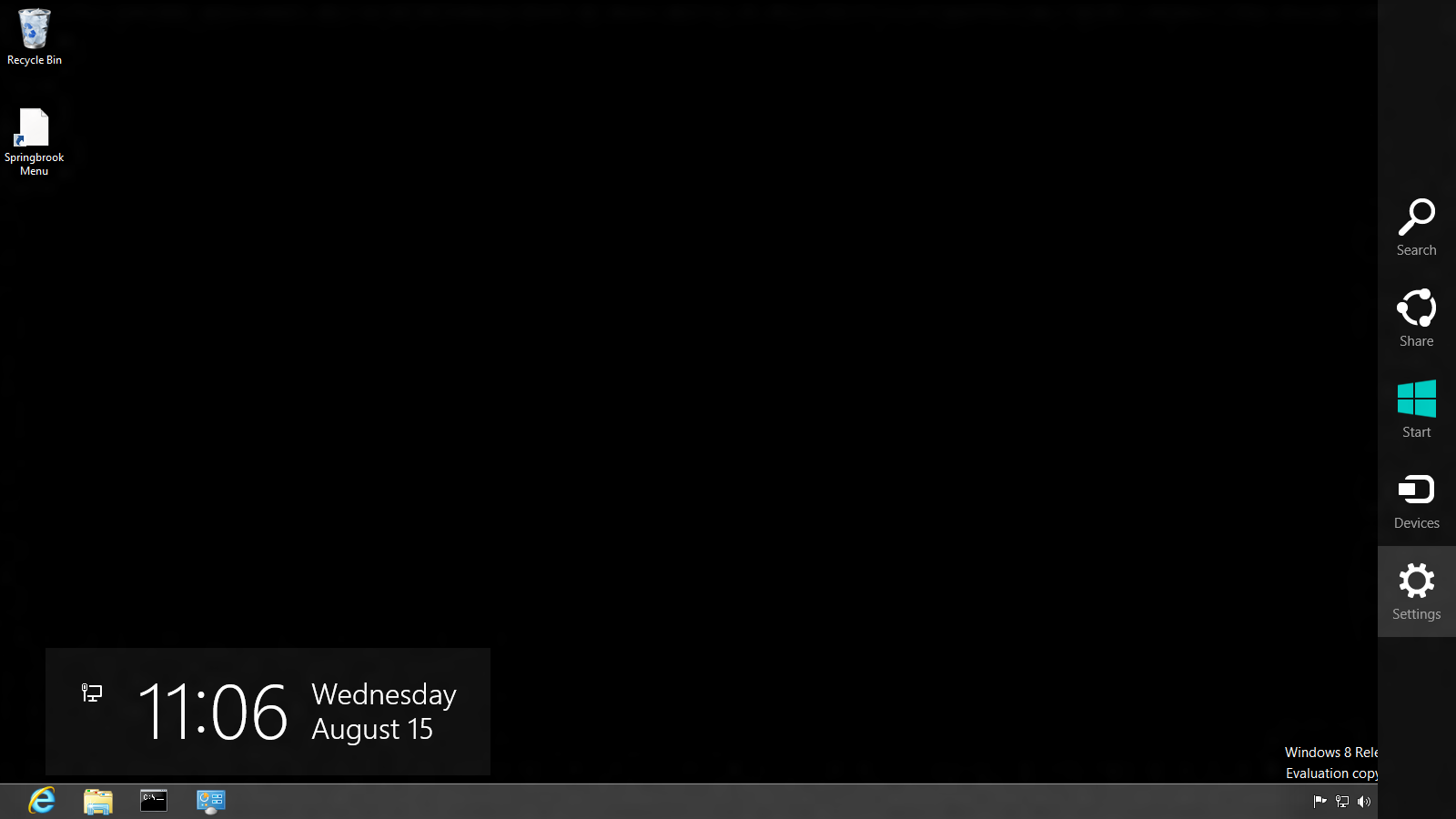
3. Click on settings. After clicking on settings, a turquoise sidebar will appear with various options. Choose "change PC settings"

4. Now you should see the beautiful PC Settings area for Windows 8. There are many settings to configure.
5. Personalize
You have the option of changing settings for the lock screen, start screen and your account picture. Under lock screen, you can change the lock image from a decent amount of images preloaded on Windows 8 or from your own collection of images. The choice is yours, though it's difficult to beat the gorgeous images that come with Windows 8.
You can also change lock screen apps. These are apps that run in the background and will continue to give you updates while in "locked" mode, e.g. the email app will give you a notification of a new email on your lock screen. The three that run in the background by default are: instant messaging, email, and calendar. You can add more. Some even have the option of giving a detailed status like the calendar app.
Start Screen. The settings for this deal with the background art for the start screen and the color. By default the color is turquoise and has the circle art. You have 6 choices to choose from for the background of the start screen: 5 designs and then the option of no design. The color options offer a healthy amount of choices.
Account Picture. Not much to see here. There is the "browse" button for choosing from pictures currently installed on your PC or you can create an account picture if you have a webcam by using the webcam app.
6. Users
This section deals with user settings for the PC: local and domain. If you're connected to a domain, then you many or may not have privilege to change your domain user settings depending on your domain policies. The first button we see is "connect your Microsoft account" which if chosen will sync your domain settings with your Microsoft account settings. I'm not entirely sure on how this works yet. I've read different things, but my theory is that web-facing apps you personally use will utilize your Microsoft account settings while domain stuff like group policy and such will utilize your domain settings allowing the two settings to work harmoniously together.
The "manage domain users" stuff works like windows 7. When clicked, you will be taken to desktop mode to tinker around with the domain users for the PC. You can also add a user here. When clicked you will be taken through the "add a user" wizard.
7. Notifications
This is a simple section. You can turn on and off notifications for apps and whether notifications are shown at all or in lock screen or heard.
8. Search
You can choose how search works. Turn on or off features like "show the apps I search most often at the top" and "let windows save my searches as future search suggestions." You can delete search history and turn on or off the apps you want to use search.
9. Share
This area is limited. The two top options are turn on or off whether you want to see apps most often used at top and show a list of how you share most often. At the bottom you have two apps to choose from for turning on and off their sharing ability: mail and people. Of course, this a fresh install PC. I don't have many apps installed, I'm sure when the list of apps installed grows more will be populated in this "share" list.
10. General
Usually general settings aren't very fun. They are usually confined to date/time, spelling, language, and such and all of that is here in Windows 8's general settings, but there are two very exciting features here in the general settings: refresh your PC without affecting your files and Reinstall Windows. I'm very excited about these two features. The first option "refreshes" your pc without losing, photos, music, and other personal files (system restore?) and the second option is for staring all over - factory fresh. This is very nice.
11. Privacy
Ah yes the privacy settings. Not much to see here. These are turn on or off functions for the following: apps use my location, let apps access my domain info, and let help improve windows store by sending URLs apps use.
12. Devices
This section gives a list of devices connected your PC locally and via the network. You can also add a device here.
13. Ease of Access
In this section there are on/off functions for making the display and audio better for you. Narration is here, length of time notifications are shown, and cursor thickness.
14. Sync Settings
This section is for users who have settings synced between their local/domain account and Microsoft account. There are many options to choose from: personalize, desktop, passwords, ease of access, language, app settings, browser, and other windows settings.
15. Homegroup
This is for home networks. What's shared, what isn't, and privacy stuff.
16. Windows Update
Check for updates, choose your update method.
I didn't include a screenshot for every setting because that would have been overkill I think. I decided to take a text approach. I did include a screenshot of the main PC settings screen and from that you can probably tell how each section will look and feel. I hope this has been helpful.
Subscribe to:
Posts (Atom)