It's highly likely that malware will never go away, no matter how awesome computers and the internet become malware will most likely still hang around like that old suit or old dress your parents never remove from their wardrobe and wear to parties. Gross. Anyway, since malware is here to stay, how does one go about removing it? Better, how does one prevent it? It can happen.
Check out this new blog post at InfoWorld written by Roger Grimes; let him tell you how the pros remove malware. It's a good piece.
While you're here let me give some advice on prevention. While malware is here to stay, it doesn't have to come stay at your house. This prevention method is near perfect.
1. Get behind a router/hardware firewall
If you have a direct line to the internet then you're screwed. You need to be behind a firewall and not just a firewall, but a hardware firewall. This is a good one. It's affordable and it rocks.
2. Antivirus
You know, I think if you're behind a firewall and you practice safe browsing then you're most likely good to go. However, many people don't practice safe browsing. So, download and install Microsoft Security Essentials. It's the best antivirus out there in my opinion. Note: if you're running windows 8 then you don't have to do this because it's already installed and running on your system.
3. Safe-Browsing Add-on
This handy tool from Web of Trust rates websites for you and will give you a warning screen upon clicking a poorly rated link. This helps out a lot because it trains the user in safe browsing. Get it here. You will need to install it on every browser you use.
4. OpenDNS
This is, arguably, optional. Using OpenDNS will not only improve your DNS performance (which makes your internet browsing faster), but it also has excellent security tools like malware prevention and safe browsing. The web filter is not only good for preventing porn, but it also filters sites that are infested with malware and other junk. Good stuff. Use it.
So those are four ways to prevent your pc and network from malware infections. However, these tools can't keep you (totally keep you) from user installed malware. So, learn about safe browsing.
Showing posts with label microsoft security essentials. Show all posts
Showing posts with label microsoft security essentials. Show all posts
Thursday, January 10, 2013

Thursday, September 27, 2012
How to Install Microsoft Security Essentials
Ok. Here we go. This is the best real-time antivirus scanner around. AVast! comes in second, but MSE is lightweight and knows Windows better than any other antivirus sytem.
First things first. Uninstall your "old" scanner. I don't know which one you had so I'll just use Norton as an example.
Click on the start button (the windows logo located at the bottom left of your screen on the task bar).
In the search bar, type 'programs and features' then click on the programs and features icon.

in the programs and features windows, find Norton (or whatever antivirus you already have installed), single click on it, then click uninstall (it's located between organize and change)
Follow the uninstall process.
Reboot if necessary.
Now, click on the following link http://windows.microsoft.com/en-US/windows/products/security-essentials
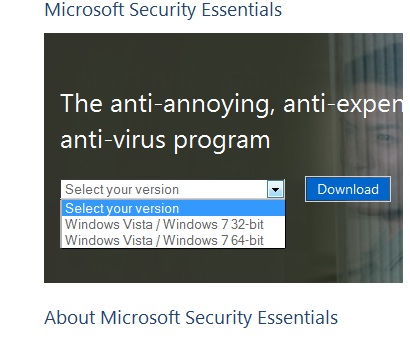
select your version of windows 7 (most likely 64 bit)
 click on download.
Save the file.
Then run the file.
Take the defaults.
If all goes well, you'll soon be protected from malware by MSE. Yay you!
First things first. Uninstall your "old" scanner. I don't know which one you had so I'll just use Norton as an example.
Click on the start button (the windows logo located at the bottom left of your screen on the task bar).
In the search bar, type 'programs and features' then click on the programs and features icon.

in the programs and features windows, find Norton (or whatever antivirus you already have installed), single click on it, then click uninstall (it's located between organize and change)
Follow the uninstall process.
Reboot if necessary.
Now, click on the following link http://windows.microsoft.com/en-US/windows/products/security-essentials
select your version of windows 7 (most likely 64 bit)
Save the file.
Then run the file.
Take the defaults.
If all goes well, you'll soon be protected from malware by MSE. Yay you!
Subscribe to:
Posts (Atom)