This error is bad news, i.e., if you don't have a recent backup. I don't know of any way to bypass this error either. Apple support said there isn't one and to just go through with the restore. What does the restore do? Running the restore will reset your iphone back to factory settings meaning just the way you had it when you bought it, opened it, then started it for the first time.
1. Run the restore
Just do it. You know, like Nike says: just do it (showing my age huh?). If you don't, you won't be able to use your iPhone. In iTunes click on the restore button and let it do the work. The restore shouldn't take longer than 10 minutes. There are progress bars through the whole thing.
2. Run your backup if you have one
iTunes will detect the restored iPhone. iTunes will also give some indication of running a backup (if you're using the "authorized" computer - the computer you have iTunes on that you use for charging and syncing your iPhone). If there is a backup detected then run it! Even if it's a few days old or more because if you don't you will be starting your iphone in factory settings mode.
How long does the restore from your backup take? It all depends on the size of your backup, i.e. how many apps you had, music, notes, etc. The restore from backup on my boss's iPhone 5 took about a hour or a little more.
3. Make sure things run correctly
I like to make sure things are running correctly before I give the device back to whomever. Make sure you can receive and send email correctly, that your iTunes store experience is correct, device to computer syncing works, iCloud syncing works and that other important apps are working.
All in all, this process wasn't as *bad* as I thought it would be. Why does this error happen? My boss told me his iPhone 5 began an update and that the didn't have time for it so he unplugged his iPhone from his computer and that's when he couldn't get his iPhone past the screen with the usb cable pointing to the iTunes logo.
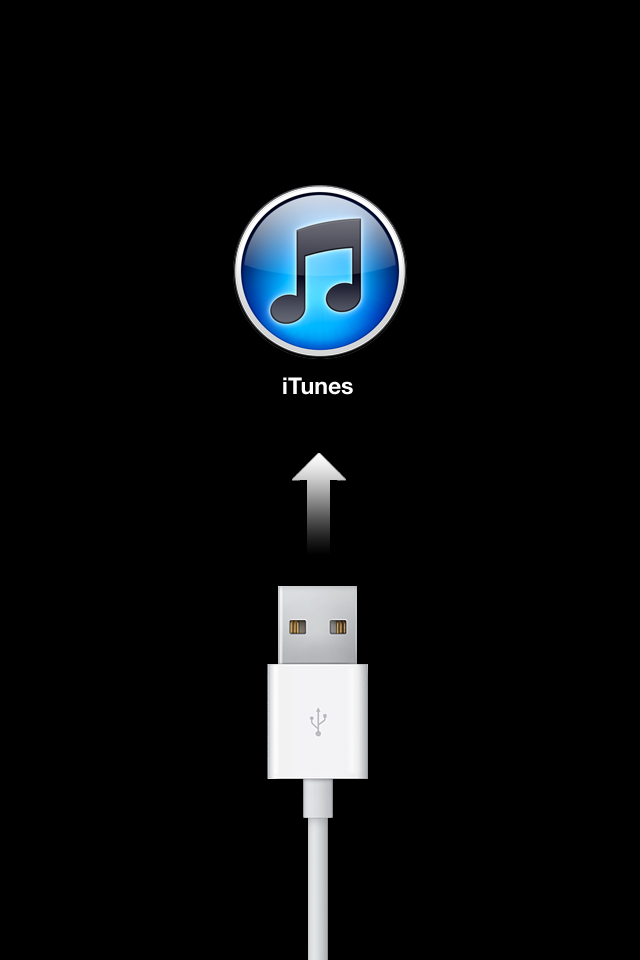
So, if your device (whatever it is) is in "installing an update" mode then LET IT DO IT BEFORE DISCONNECTING IT OR TURNING IT OFF.
Showing posts with label apple. Show all posts
Wednesday, January 30, 2013
Monday, October 15, 2012
How to Use Google Maps on iOS6
Have you heard? No Google maps app on Apple iPhone's iOS6. Yep. That's right. This makes sense for Google, of course, because Google is in competition with Apple. Basically Google is saying, "Hey, competitor, make your own mapping app." While the Google maps app is not available for the iphone, there is a workaround so don't despair. No, it's not the app, but it's still google maps.
Go to Safari. Type in Google in the address bar. Once you're there, click on "maps." You might be asked by the browser if you'd like to add a shortcut icon to your home screen. Do it and now you'll be able to access Google maps on your newly updated iphone. No, it's not perfect and accessing Google maps through the web isn't as fluid as the app version; however, currently, this is the only way to use Google maps on your iOS6 smartphone.
Subscribe to:
Posts (Atom)