Recently, I worked on the following two problems on a Vista machine with a recently updated Internet Explorer browser (from 8 to 9) that had two problems. One, when closing a tab or the Internet Explorer 9 window I would get the following popup message: Internet Explorer has stopped working. That wasn't an intermittent problem. It happened every single time a tab or the window closed. I couldn't blame the user for being annoyed by this. The other problem was when he clicked on the IE shortcut in the taskbar or on the desktop, IE would open in a tiny rectangle box instead of opening maximized.
First, how to fix the "internet explorer has stopped working" error.
Open Internet Explorer. Then click on the gear icon in the top right window to make the Tools menu appear. Then
click on internet options to bring up the internet options menu. Click on the
advanced tab and check the box under "accelerated graphics" called "use software
rendering…" Make sure that is checked then click OK and reboot. After the reboot Internet Explorer worked correctly.
While the above solution worked for my situation, it doesn't fix every situation. You may have an IE startup process that is causing the problem too. In the past I've used autoruns, a handy tool, to find those nasty processes in IE startup and delete them, fixing not only the error after closing IE but also improving overall IE performance. Installing toolbars, addons, etc. often cripples your web browser's performance and can cause weird problems like the error message we focused on in this post.
Now about the "maximize when opened" solution. There are different solutions for this problem. What worked for this situation I'll offer then I'll follow that with some other possible solutions.
Open Internet Explorer and size the window to your liking. Then hold down the ctrl key while clicking the red “x” to close the program. This will set the
IE window to open at this setting every time. To makes sure other links
and such open the same way dick on the gear icon like you did earlier, click internet options,click
"tabs", then select "always
open pop-ups in a new tab." Click OK once then one more time in the previous window. I will also say this worked on a Vista machine. I don't know if that makes a difference or not. I do know this next method worked on Windows 7 machines but didn't work on this Vista machine. It's very simple. Open Internet Explorer then click and drag the window to the top of the monitor. It will be maximized. Close it then reopen it and the window should open maximized. That solution worked on a few Windows 7 machines in the past.
There's one more I'll detail below.
Go the the desktop and right click on the desktop, click new, then shortcut. Create a short cut to "Program Files/Internet Explorer/iexplore.exe" Right click on the short cut and then select Properties. Click on the tab "Shortcut" and then change the value in the run command to "maximized". Click apply then OK. Now Internet Explorer will open in the maximized state when you click on any short cut to iexplore.exe.
So there you have it! If you have any questions comment below.
Showing posts with label troubleshooting. Show all posts
Showing posts with label troubleshooting. Show all posts
Thursday, October 17, 2013

Friday, October 11, 2013
How to restore Windows 7 default "desktop" folder
Here is a quick tip on fixing the path for your desktop folder when the easy method of right-click > Properties > Location doesn't work.
Go into the Registry Editor (Start > search > regedit). When Registry Editor opens go to HKEY_CURRENT_USER\Software\Microsoft\Windows\CurrentVersion\Explorer\User Shell Folders
Over on the right you should see "Desktop." Double-click the "Desktop" entry. A window will open displaying the value "Desktop" and "Value Data" (the path to the desktop folder). Now, if you want to put in the correct path (C:\Users\Username\Desktop) for your desktop folder or your desired path this is where you would input it then log out and log back in for the setting to take effect.
Go into the Registry Editor (Start > search > regedit). When Registry Editor opens go to HKEY_CURRENT_USER\Software\Microsoft\Windows\CurrentVersion\Explorer\User Shell Folders
Over on the right you should see "Desktop." Double-click the "Desktop" entry. A window will open displaying the value "Desktop" and "Value Data" (the path to the desktop folder). Now, if you want to put in the correct path (C:\Users\Username\Desktop) for your desktop folder or your desired path this is where you would input it then log out and log back in for the setting to take effect.
Thursday, July 25, 2013
Exchange 2010 451.4.4.0 Queue Problem
Sometimes weird stuff happens with technology. There's no philosophical inquiry needed because, in my experience, technology problems often don't have an answer as to *why* the problem happened; it just happened. Yeah, there are some reasons we can give to why it happened, sometimes, but like with this problem I'm about to describe, I can't give a reason why it happened. All I know is that it happened and I had to fix it.
A couple of the employees told me they weren't receiving emails from our employee self service application. Employees use this to view paystubs, events, and such so it is important that this application is working correctly. Employees register with whatever email address they want to use: professional or personal, we don't care.
When I dove into Exchange 2010, I noticed by looking at the logs and the queue viewer that the only domain generating an error was our professional domain. Google, Live, and yahoo domains were receiving email from our server, but not our domain. The error generated in the queue viewer was 451.4.4.0 DNS Query Failed. This was odd because I leave this server alone. The only changes made to the server are security updates. That's it. Regardless, this problem happened and I had to fix it.
How did I fix it? Well, obviously it was a DNS issue. I could tell by the error message. :p

So I checked out the external DNS lookups tab in the HUB transport server object properties. I had the top option "use network card dns settings" selected and that is how it has been running for over a year now. Anyway, since a problem had occurred I decided to select the other option "use these DNS servers" and put in the IPs of the servers we forward to. I then configured the SMTP send connector properties under the network tab (located by selecting hub transport under org. configuration) and checked the box "use the external DNS lookup settings on the transport server." Doing this cleared the queue and employees using their professional email addresses received (are are receiving) their email from "employee self service." Yeah, this is working, but I'm not sure why the problem occurred. I'm glad I was able to fix it in a timely manner. Obviously there was a problem with the DNS properties of the network card for the exchange server because changing the option to external lookups and using the DNS forwarders fixed the problem. I'll have to investigate further and will write here again if and when I figure that out.
Anyway, I hope this helps one of you having this strange problem.
A couple of the employees told me they weren't receiving emails from our employee self service application. Employees use this to view paystubs, events, and such so it is important that this application is working correctly. Employees register with whatever email address they want to use: professional or personal, we don't care.
When I dove into Exchange 2010, I noticed by looking at the logs and the queue viewer that the only domain generating an error was our professional domain. Google, Live, and yahoo domains were receiving email from our server, but not our domain. The error generated in the queue viewer was 451.4.4.0 DNS Query Failed. This was odd because I leave this server alone. The only changes made to the server are security updates. That's it. Regardless, this problem happened and I had to fix it.
How did I fix it? Well, obviously it was a DNS issue. I could tell by the error message. :p

So I checked out the external DNS lookups tab in the HUB transport server object properties. I had the top option "use network card dns settings" selected and that is how it has been running for over a year now. Anyway, since a problem had occurred I decided to select the other option "use these DNS servers" and put in the IPs of the servers we forward to. I then configured the SMTP send connector properties under the network tab (located by selecting hub transport under org. configuration) and checked the box "use the external DNS lookup settings on the transport server." Doing this cleared the queue and employees using their professional email addresses received (are are receiving) their email from "employee self service." Yeah, this is working, but I'm not sure why the problem occurred. I'm glad I was able to fix it in a timely manner. Obviously there was a problem with the DNS properties of the network card for the exchange server because changing the option to external lookups and using the DNS forwarders fixed the problem. I'll have to investigate further and will write here again if and when I figure that out.
Anyway, I hope this helps one of you having this strange problem.
Tuesday, July 16, 2013
How to delete Exchange 2010 mailbox without removing user object
This is a question that pops up occasionally. If you want to remove a user mailbox, but keep the user account active because he will still be connecting to the network how do you do it? Right-clicking the user mailbox in Exchange 2010 displays options like 'remove' and 'disable.' Clearly I don't want to disable the mailbox because that will just disable the user mailbox instead of removing it right? Wrong. Disable is actually what you want to click to remove the mailbox while keeping the user account in Active Directory. Yes, the mailbox will be disabled for a while and not removed, but after a period of time (depending on your Exchange setup) the mailbox will be removed (deleted) from storage.
Yes, it's strange but clicking disable will remove exchange properties from the user account then the disconnected mailbox will be setup for deletion. Doesn't it seem like 'remove' should do this?
Yes, it's strange but clicking disable will remove exchange properties from the user account then the disconnected mailbox will be setup for deletion. Doesn't it seem like 'remove' should do this?
Monday, June 3, 2013
Fun with Windows update errors 80246007 and 80070002
*yes it has been a while since I've blogged. I've been very busy with life and studying for MCSA 70410*

At work recently, I've had trouble with a Windows 7 pro 64 bit machine dedicated to running our remote check scanner device and software. The machine has never given me trouble until today. I was doing my morning "thang" checking out security stuff on our network. I discovered that the remotescanner machine had failed update install errors. I RDP into the machine to get a closer look. The specific errors surrounded in large, scary, red-ness were: 80246007 and 80070002. The machine hasn't been installing the latest updates for the past few days.
Looking into the errors I found that there was a 'fix-it' option. I took that option because, hey, usually that is the efficient way to take. Guess what? Fix-it didn't fix it! That's unusual for my 'fix-it experience. I even ran fix-it again only to find that it still didn't work. Tackling the errors myself I was able to solve the problem following *some* of the steps. At first, I restarted the BITS service, restarted the machine, checked for updates, downloaded the updates and then the updates actually installed. Upon reboot and logging into Windows, I was told by Update that more updates needed to be installed so I ran the install and all the updated installed successfully (yes, the updates that failed these past few days). I checked for more but there weren't any to download. So, the machine is now nice, green, and updated.
I'm confused though. Restarting the BITS is the solution for 80246007, not for 80070002. Why are Windows Updates now installing instead of failing? Whatever the answer, I'm glad the machine is working properly now, but I do wonder why two errors were the culprit for failed updates only to be fixed by the solution for one of the errors?

At work recently, I've had trouble with a Windows 7 pro 64 bit machine dedicated to running our remote check scanner device and software. The machine has never given me trouble until today. I was doing my morning "thang" checking out security stuff on our network. I discovered that the remotescanner machine had failed update install errors. I RDP into the machine to get a closer look. The specific errors surrounded in large, scary, red-ness were: 80246007 and 80070002. The machine hasn't been installing the latest updates for the past few days.
Looking into the errors I found that there was a 'fix-it' option. I took that option because, hey, usually that is the efficient way to take. Guess what? Fix-it didn't fix it! That's unusual for my 'fix-it experience. I even ran fix-it again only to find that it still didn't work. Tackling the errors myself I was able to solve the problem following *some* of the steps. At first, I restarted the BITS service, restarted the machine, checked for updates, downloaded the updates and then the updates actually installed. Upon reboot and logging into Windows, I was told by Update that more updates needed to be installed so I ran the install and all the updated installed successfully (yes, the updates that failed these past few days). I checked for more but there weren't any to download. So, the machine is now nice, green, and updated.
I'm confused though. Restarting the BITS is the solution for 80246007, not for 80070002. Why are Windows Updates now installing instead of failing? Whatever the answer, I'm glad the machine is working properly now, but I do wonder why two errors were the culprit for failed updates only to be fixed by the solution for one of the errors?
Monday, April 8, 2013
Windows 8 wifi problem with specific WAPs
This problem isn't cool. It's not cool at all. Even if this problem was stated to be cool by the Fonz himself this problem wouldn't be cool. What is the problem? Windows 8 wifi drivers and certain wireless access points. Let's get into it.
I love Windows 8. I do. Heck, I'm a shill for Microsoft Windows 8. Do I love the start screen? Yes I do. Do I love the graphical design? Yes I do. Do I love the how "things just work" in Windows 8? Yes I do. It's true. It's true. Is Windows 8 perfect? No it's not. It is getting there though. That's another blog post for another time though. What I've encountered thus far in my Windows 8 love and experience is a problem with Windows 8 wifi drivers working with access points. At my house, my Lenovo Windows 8 ultrabook works excellent with my wireless network. I have a Netgear wireless router and my Win 8 ultrabook "just works" with it. No problem at all. Now, at work, we have BYOD so I take my ultrabook to work with me; it will not "just work" with the access point. I have a coworker who also loves Windows 8. Guess what? Her HP tablet pc will not "just work" with the access point either. Those are the only two Windows 8 devices currently at work so that is the extent of my first-hand experience with the problem, but if you "bing" or "google" something along the lines of my problem there are many other people having the same issue.
Specifics
The Windows 8 laptops will only get a limited connection to the wireless network. Running the troubleshooter will "fix" the problem for about 3 minutes then the device is back to limited. The troubleshooter says "Not a valid IP configuration: fixed" and "no default gateway: fixed." Then you have full connection for 0 to 3 minutes before it goes back to limited. Bizarre (to me anyway). Right off I thought it would be a driver issue. I updated the drivers to the latest and greatest for the Intel Centrino Wireless-N 2230. Didn't work. I uninstalled the Windows 8 driver then installed the Windows 7 driver for the device. That didn't work either (so I went back to the Windows 8 driver). I made sure the power management was correct, i.e., the laptop couldn't turn off the adapter to save on power. That didn't work either.
* at this point I think I should mention that, yes, all other laptops and wireless devices connected and functioned perfectly on the wireless network*
What could be causing the intermittent issue? Especially since it's only Windows 8? I'm not sure why I went here, but I went into the settings for the WAP. Perhaps the firmware for this Netgear model didn't want to play nicely with Windows 8? It's possible given the age (a few years old). I updated the firmware on the device. That didn't fix the issue. My frustration was quite high to say the least. So, I scoured the tech forums. Oddly enough, I did find something I hadn't tried that someone had tried which was changing the channel/frequency setting in the WAP from auto to, in his case, channel 6. That worked for him. I gave it a shot. Guess what? It worked for nearly an hour then the ultrabook just disconnected. It didn't even go to limited. It just disconnected. I changed to other channels only to find the same disappointment.
Stupid things I tried that obviously didn't fix the issue:
Turning off the firewall
Disabling other network adapters besides the Intel Centrino
Resetting WinSock
*****UPDATE*****
I had a motorola WAP on the hardware shelf. I added it and configured it to the network and, to no surprise, the Win 8 laptops connected quick, working just like they're supposed to. What I've concluded from this problem is the Win 8 wifi drivers just aren't playing nice with all WAPs. I wonder why?
Thoughts? Anyone?
I love Windows 8. I do. Heck, I'm a shill for Microsoft Windows 8. Do I love the start screen? Yes I do. Do I love the graphical design? Yes I do. Do I love the how "things just work" in Windows 8? Yes I do. It's true. It's true. Is Windows 8 perfect? No it's not. It is getting there though. That's another blog post for another time though. What I've encountered thus far in my Windows 8 love and experience is a problem with Windows 8 wifi drivers working with access points. At my house, my Lenovo Windows 8 ultrabook works excellent with my wireless network. I have a Netgear wireless router and my Win 8 ultrabook "just works" with it. No problem at all. Now, at work, we have BYOD so I take my ultrabook to work with me; it will not "just work" with the access point. I have a coworker who also loves Windows 8. Guess what? Her HP tablet pc will not "just work" with the access point either. Those are the only two Windows 8 devices currently at work so that is the extent of my first-hand experience with the problem, but if you "bing" or "google" something along the lines of my problem there are many other people having the same issue.
Specifics
The Windows 8 laptops will only get a limited connection to the wireless network. Running the troubleshooter will "fix" the problem for about 3 minutes then the device is back to limited. The troubleshooter says "Not a valid IP configuration: fixed" and "no default gateway: fixed." Then you have full connection for 0 to 3 minutes before it goes back to limited. Bizarre (to me anyway). Right off I thought it would be a driver issue. I updated the drivers to the latest and greatest for the Intel Centrino Wireless-N 2230. Didn't work. I uninstalled the Windows 8 driver then installed the Windows 7 driver for the device. That didn't work either (so I went back to the Windows 8 driver). I made sure the power management was correct, i.e., the laptop couldn't turn off the adapter to save on power. That didn't work either.
* at this point I think I should mention that, yes, all other laptops and wireless devices connected and functioned perfectly on the wireless network*
What could be causing the intermittent issue? Especially since it's only Windows 8? I'm not sure why I went here, but I went into the settings for the WAP. Perhaps the firmware for this Netgear model didn't want to play nicely with Windows 8? It's possible given the age (a few years old). I updated the firmware on the device. That didn't fix the issue. My frustration was quite high to say the least. So, I scoured the tech forums. Oddly enough, I did find something I hadn't tried that someone had tried which was changing the channel/frequency setting in the WAP from auto to, in his case, channel 6. That worked for him. I gave it a shot. Guess what? It worked for nearly an hour then the ultrabook just disconnected. It didn't even go to limited. It just disconnected. I changed to other channels only to find the same disappointment.
Stupid things I tried that obviously didn't fix the issue:
Turning off the firewall
Disabling other network adapters besides the Intel Centrino
Resetting WinSock
*****UPDATE*****
I had a motorola WAP on the hardware shelf. I added it and configured it to the network and, to no surprise, the Win 8 laptops connected quick, working just like they're supposed to. What I've concluded from this problem is the Win 8 wifi drivers just aren't playing nice with all WAPs. I wonder why?
Thoughts? Anyone?
Friday, April 5, 2013
Windows 7 SP1 not offered in Windows Update? Dude what's up with that?

Dude, what's up with that? Is that correct response. You're mad at Microsoft. "Everyone else is getting it! Why am I not?" You fold your arms, pooch out your bottom lip and give Microsoft the most evil stare of all time. Of all time!
Maybe it's not Microsoft. Maybe. I encountered this problem on a machine this week. I was doing my, ahem, weekly (okay maybe monthly...er...) checks on the machines in the network. I noticed one didn't have Windows 7 Pro SP1.
What?
That was released a loooong time back. For the shop the machine is in, I have automatic Windows Updates set. I noticed the other handful of machines were all up to date and yes, this machine was still "up to date," but not SP1 "up to date." What to do? Scouring Microsoft support I found an article with some helpful information. This article gives six methods on how to receive the SP1 update if it's not offered in Windows Update.
Method 1: Confirm that Windows 7 SP1 is not already installed and that you are not running a prerelease version of Windows 7 SP1
Method 2: Check for pending updates
Method 3: Verify that an incompatible version of SafeCentral is not installed on your computer
Method 4: Check whether you have Intel integrated graphics driver Igdkmd32.sys or Igdkmd64.sys and whether you upgraded the driver
Method 5: Make sure that you did not use vLite to customize your Windows 7 installation
Method 6: Download the Windows 7 SP1 from Microsoft Download Center
Method 4 worked for me. The machine had the integrated graphics driver and the update for that driver was in the "optional updates" section of Windows Update so it wasn't installed automatically.

After running the driver update for the integrated graphics and a reboot, the SP1 update was offered as an update. That's fresh if you ask me.
Now, you might say, "That's nice, but I don't have Intel GMA or anything else recommended to check in the methods. What now?" Still, the driver might be installed and disabled which is why it's not showing in DxDiag. It might be that at one time you used the onboard graphics which means the Intel driver was installed on the machine but you disabled it because you added a graphics card. The driver is still installed, if that is the case, and Windows is seeing that driver thus not offering you the SP1 update.
Go into your BIOS and enable the onboard graphics again.
Reboot.
Check for updates in Windows update.
The Intel driver will most likely show up.
Install the update.
Reboot.
Search for Windows updates.
SP1 should be offered now.
Install it and the many other updates offered after reboot.
Rejoice.
Monday, March 4, 2013
Resources on Installing and Configuring Exchange Server 2010

In preparation for the install and configuration of Exchange Server 2010, I was greatly helped by the list of links below, so I'm sharing. I hope these links help you as much as they helped me.
Enjoy!
Installing Exchange 2010 step-by-step http://www.enterprisenetworkingplanet.com/datacenter/Installing-Exchange-2010-Step-by-Step-3877601.htm
Understanding receive connectors in Exchange 2010 http://technet.microsoft.com/en-us/library/aa996395.aspx
Create an SMTP receive connector http://technet.microsoft.com/en-us/library/bb125159.aspx
Understanding Edge subscriptions http://technet.microsoft.com/en-us/library/aa997438.aspx
How to allow relaying in Exchange 2010...securely http://exchangepedia.com/2007/01/exchange-server-2007-how-to-allow-relaying.html
Anonymous Relay with Exchange 2010 http://blogs.catapultsystems.com/tharrington/archive/2010/07/20/anonymous-relay-with-exchange-20072010.aspx
Troubleshooting the client access server http://blogs.catapultsystems.com/tharrington/archive/2010/09/17/troubleshooting-the-client-access-server.aspx
SSL for outlook web app 2010 http://www.experts-exchange.com/Software/Server_Software/Email_Servers/Exchange/Q_26160513.html
Security warning when you start outlook 2007 then connect it to Exchange 2010 http://support.microsoft.com/kb/940726
Troubleshoot Outlook Web Access problems http://www.techrepublic.com/article/get-it-done-troubleshoot-outlook-web-access-problems/5031583
Tuesday, February 19, 2013
Windows Server 2008 R2 RDWeb Resources
This is the first post of February 2013 and it's already the 19th. I can't believe it. I haven't posted in a while, but it's not because of laziness: I've been working on RDWeb for my work. Along the way I found some very helpful and not so helpful resources. I'll only list the helpful links. Do note that these links may not solve your problem and that I'm not endorsing *every* solution mentioned in the links. The answers labeled "best answer" or "chosen answer" helped me in the forums. I didn't try every solution that is mentioned in the links below.
My main focus for deploying Remote Desktop Services was to make our local applications available to users located outside our network so that's the focus of the links below.
Getting Started
Deploying Remote Desktop Web Access Step-by-Step Guide
Resources on Troubleshooting Outside Access Problems
External Users Can't Connect to Apps in RDWeb
TS Gateway "the computer can't connect to the remote computer"
External Access to RDWeb Problem
How to resolve external FQDN to a local IP when behind a firewall
RD Gateway/Web Access Outside the Firewall
Your computer can’t connect to the remote computer because the Remote Desktop Gateway server address is unreachable or incorrect. Type a valid Remote Desktop Gateway server address.
Can't Access Through Gateway
Remote Desktop Gateway is Temporarily Unavailable
Licensing
Remote Desktop Services Licensing
Customizing the RDWeb website
Customizing RDWeb
Troubleshooting Remote Desktop from RDWeb
Remote Desktop via RDWeb
My main focus for deploying Remote Desktop Services was to make our local applications available to users located outside our network so that's the focus of the links below.
Getting Started
Deploying Remote Desktop Web Access Step-by-Step Guide
Resources on Troubleshooting Outside Access Problems
External Users Can't Connect to Apps in RDWeb
TS Gateway "the computer can't connect to the remote computer"
External Access to RDWeb Problem
How to resolve external FQDN to a local IP when behind a firewall
RD Gateway/Web Access Outside the Firewall
Your computer can’t connect to the remote computer because the Remote Desktop Gateway server address is unreachable or incorrect. Type a valid Remote Desktop Gateway server address.
Can't Access Through Gateway
Remote Desktop Gateway is Temporarily Unavailable
Licensing
Remote Desktop Services Licensing
Customizing the RDWeb website
Customizing RDWeb
Troubleshooting Remote Desktop from RDWeb
Remote Desktop via RDWeb
Wednesday, January 30, 2013
iTunes has detected an iPhone in recovery mode. You must restore this iPhone before it can be used with iTunes

1. Run the restore
Just do it. You know, like Nike says: just do it (showing my age huh?). If you don't, you won't be able to use your iPhone. In iTunes click on the restore button and let it do the work. The restore shouldn't take longer than 10 minutes. There are progress bars through the whole thing.
2. Run your backup if you have one
iTunes will detect the restored iPhone. iTunes will also give some indication of running a backup (if you're using the "authorized" computer - the computer you have iTunes on that you use for charging and syncing your iPhone). If there is a backup detected then run it! Even if it's a few days old or more because if you don't you will be starting your iphone in factory settings mode.
How long does the restore from your backup take? It all depends on the size of your backup, i.e. how many apps you had, music, notes, etc. The restore from backup on my boss's iPhone 5 took about a hour or a little more.
3. Make sure things run correctly
I like to make sure things are running correctly before I give the device back to whomever. Make sure you can receive and send email correctly, that your iTunes store experience is correct, device to computer syncing works, iCloud syncing works and that other important apps are working.
All in all, this process wasn't as *bad* as I thought it would be. Why does this error happen? My boss told me his iPhone 5 began an update and that the didn't have time for it so he unplugged his iPhone from his computer and that's when he couldn't get his iPhone past the screen with the usb cable pointing to the iTunes logo.
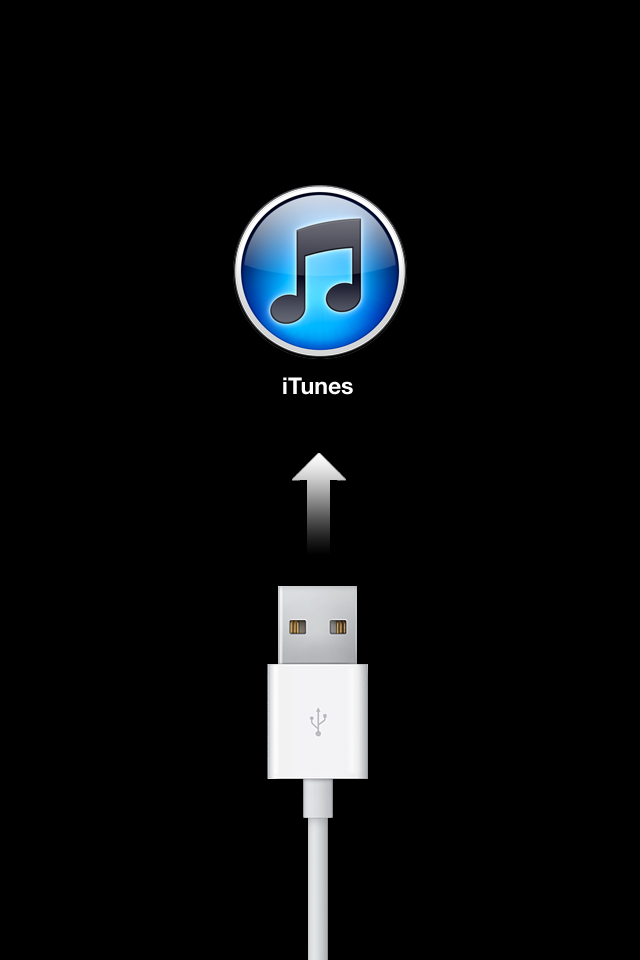
So, if your device (whatever it is) is in "installing an update" mode then LET IT DO IT BEFORE DISCONNECTING IT OR TURNING IT OFF.
Wednesday, January 23, 2013
Application Authentication Through VPN Tunnel Problem
This is a good "from the trenches" story, especially if you like networking. I've been working on this problem for exactly a week (no, not a crazy long time, but still, it's a while) and today I finally fixed the issue.
At work our main application for hr, payroll, general ledger, and employee self-service is called Springbrook. It's a nice, though slightly bloated, application that works for us. It's important to know how Springbrook is used for this story to make sense. Please bear with me while I give you the rundown.
The Springbrook application is installed on server1 along with the programs OpenEdge and Progress to handle all of the data processing for Springbrook. We have a separate drive just for Springbrook, OpenEdge and Progress. When the app is executed, the login page is opened in Internet Explorer. Springbrook uses the LDAP protocol (in our case Active Directory) to authenticate the user trying to login against the login id’s already inside of Springbrook, so when the session is established it requires that the user logs in and is authenticated to the domain which in turn makes the connection to the LDAP connector which verifies user info and allows them access.
How do the users run Springbrook? I have setup a mapped drive to the server on their workstations. I setup a desktop shortcut to the executable so the employees don't have to go that mapped drive each time and double-click the executable. So, it looks and feels like Springbrook is installed locally on their workstations.
This setup works great for local users right? What about remote users? We have those. One currently, but we're about to have one more permanent remote user. I decided to go with the VPN option in our Sonicwall TZ 210. It worked great. It was fast, surprisingly, and the user didn't have to go through remote desktop to use Springbrook which was nice. I mapped a drive to the server so she was able to use it just like the local users do. Fantastic.
Well, eight days ago Springbrook ran a service pack for the application. No problem because they do that on occasion to correct problems in the modules. The next day my remote user couldn't use Springbrook. I asked her if the VPN connected fine and she said "yeah, I can connect to the network, but I can't login to Springbrook." I told her to wait and I would be there in about fifteen minutes. I went through the checklist and found that nothing should be preventing her from logging in to Springbrook. I was so confused. The only change was the service pack install. I contacted Springbrook about this and the tech told me that somehow the authentication isn't happening in the VPN tunnel.
Okay. I knew that, haha
He then said that they use Citrix for their remote employees. I'm sure Citrix has a very nice WebApp tool, but if I can do this through a VPN tunnel and save us money that would be great. I don't like to go with paid solutions if we can implement a solution with equipment and software we already have. So, since I couldn't figure the problem out I decided to hit the forums. A person at serverfault recommended the VPN option in Windows Server 2008. I thought, "Why not?" I set that up in my lab. The VPN connection was fast, smooth, and near painless. *I'm going to write a blog post about it because it's so simple and there wasn't a single post containing all of the steps, instead I had to piece it together from multiple posts - ugh* Anyway, I connected to the VPN server, accessed the Springbrook share, ran Springbrook and guess what? I couldn't login to Springbrook. THE EXACT SAME PROBLEM. I understood possibly having an authentication issue using Sonicwall's VPN but there is no way that my server couldn't authenticate me because I connected to that server with my Active Directory credentials.
I was livid. Suddenly, I thought, "Why don't I try adding the .local to the domain name in the domain field?" The Springbrook login window requires a username, password, and a domain. All users and I mean all of our users don't have to put the .local for the domain however when you're up against a wall you try anything. I added .local to the domain name and then Springbrook launched. That fixed the issue. I couldn't believe it. I then wondered if that was the problem going through Sonicwall? I called the remote user, asked her when I could work on this for her, she said now and so I went to her office. I enabled the Sonicwall VPN connection, ran the Springbrook application, added the .local to the domain name and like a charm I was running Springbrook. The user was happy and yeah I was happy, but I want to know why I have to add .local to the domain name when logging in remotely now. Remote users didn't have to do that before last week. Why now?
I'm not satisfied. Could it be the recent Springbrook service pack update? I contacted Springbrook support and hopefully I'll hear back from them soon.
Anyway, lesson is try the easy things first. Like usual.
At work our main application for hr, payroll, general ledger, and employee self-service is called Springbrook. It's a nice, though slightly bloated, application that works for us. It's important to know how Springbrook is used for this story to make sense. Please bear with me while I give you the rundown.
The Springbrook application is installed on server1 along with the programs OpenEdge and Progress to handle all of the data processing for Springbrook. We have a separate drive just for Springbrook, OpenEdge and Progress. When the app is executed, the login page is opened in Internet Explorer. Springbrook uses the LDAP protocol (in our case Active Directory) to authenticate the user trying to login against the login id’s already inside of Springbrook, so when the session is established it requires that the user logs in and is authenticated to the domain which in turn makes the connection to the LDAP connector which verifies user info and allows them access.
How do the users run Springbrook? I have setup a mapped drive to the server on their workstations. I setup a desktop shortcut to the executable so the employees don't have to go that mapped drive each time and double-click the executable. So, it looks and feels like Springbrook is installed locally on their workstations.
This setup works great for local users right? What about remote users? We have those. One currently, but we're about to have one more permanent remote user. I decided to go with the VPN option in our Sonicwall TZ 210. It worked great. It was fast, surprisingly, and the user didn't have to go through remote desktop to use Springbrook which was nice. I mapped a drive to the server so she was able to use it just like the local users do. Fantastic.
Well, eight days ago Springbrook ran a service pack for the application. No problem because they do that on occasion to correct problems in the modules. The next day my remote user couldn't use Springbrook. I asked her if the VPN connected fine and she said "yeah, I can connect to the network, but I can't login to Springbrook." I told her to wait and I would be there in about fifteen minutes. I went through the checklist and found that nothing should be preventing her from logging in to Springbrook. I was so confused. The only change was the service pack install. I contacted Springbrook about this and the tech told me that somehow the authentication isn't happening in the VPN tunnel.
Okay. I knew that, haha
He then said that they use Citrix for their remote employees. I'm sure Citrix has a very nice WebApp tool, but if I can do this through a VPN tunnel and save us money that would be great. I don't like to go with paid solutions if we can implement a solution with equipment and software we already have. So, since I couldn't figure the problem out I decided to hit the forums. A person at serverfault recommended the VPN option in Windows Server 2008. I thought, "Why not?" I set that up in my lab. The VPN connection was fast, smooth, and near painless. *I'm going to write a blog post about it because it's so simple and there wasn't a single post containing all of the steps, instead I had to piece it together from multiple posts - ugh* Anyway, I connected to the VPN server, accessed the Springbrook share, ran Springbrook and guess what? I couldn't login to Springbrook. THE EXACT SAME PROBLEM. I understood possibly having an authentication issue using Sonicwall's VPN but there is no way that my server couldn't authenticate me because I connected to that server with my Active Directory credentials.
I was livid. Suddenly, I thought, "Why don't I try adding the .local to the domain name in the domain field?" The Springbrook login window requires a username, password, and a domain. All users and I mean all of our users don't have to put the .local for the domain however when you're up against a wall you try anything. I added .local to the domain name and then Springbrook launched. That fixed the issue. I couldn't believe it. I then wondered if that was the problem going through Sonicwall? I called the remote user, asked her when I could work on this for her, she said now and so I went to her office. I enabled the Sonicwall VPN connection, ran the Springbrook application, added the .local to the domain name and like a charm I was running Springbrook. The user was happy and yeah I was happy, but I want to know why I have to add .local to the domain name when logging in remotely now. Remote users didn't have to do that before last week. Why now?
I'm not satisfied. Could it be the recent Springbrook service pack update? I contacted Springbrook support and hopefully I'll hear back from them soon.
Anyway, lesson is try the easy things first. Like usual.
Monday, December 10, 2012
.NET 4 Full Install Saved The Day
Last week ended well. A remote user has been using a work app in an odd way and now she can finally use it 99% just like the users at our main site. Cool. Before, I had her connecting to our main site via Sonicwall Global VPN client, then using RDP to a virtual machine. No, it's not a horrible way to use the app, but it's not the best. Why did I have her setup this way? I'll explain.
Our application we use for HR, payroll, general ledger, project management, etc. runs from serer1. It's installed on that server. Our main site users have a mapped drive to server1 and a shortcut to the app on their desktops. They click on the shortcut, and since the app is web based, IE 8/9 pops up with the app graphic and a link for the database to connect to. Once the database link is clicked, the login window pops up for the user to put in her credentials then away she goes working. That's how the run process, well, runs. For the remote user, I had in mind the following: connect via vpn then use the app just like users at the main do. Well, my setup didn't go as planned. Earlier this year when I setup the remote user for app use, I ran the sonicwall vpn global client to connect to our main site. I mapped the drive to server1, placed the shortcut to the app on her desktop, clicked on it, ran the config, the IE app graphic window popped up, I clicked on the database link, but then nothing happened after that. Nothing. I clicked again and nothing. I at least expected an error message, but I wasn't given anything. The user was pressed for time. I asked her if I could investigate, that it could probably take a lot of time and she more or less said "no." I told her I could make a quick fix and she was fine with that. So, I setup the RDP method. She was fine with that and she had been fine with that for many months.
Last week she reminded me about it and wondered if I could eliminate the remote step. I told her it would probably take some time and she was fine with that. I setup a lab in my office, almost identical to her setup (the only difference was my connection was wireless). In my lab an error message displayed on the screen. I clicked on the database link, then BAM an error message popped up reporting an app crash. I flew to the event viewer and found an application crash reported. I then decided to compare and contrast my lab setup and our production setup. I found a difference (besides the vpn connection, :P): our production computers had .NET Framework 4 Extended and Client Profile whereas my lab computer only had .NET Framework 4 Client Profile. So, I installed .NET 4 Full on my lab computer and after that the app worked flawlessly.
I then called the remote user, setup a time, went out there installed .NET 4 full and then the app worked exactly as it should have worked. The user was ecstatic. I had never seen her so happy. She told me she didn't mind going through the RDP, but the text was small, the connection would timeout after inactivity; just those little things that don't ruin your work, but are just so annoying you can't work happily you know? Well, so far, so great for her current setup. All she has to do now is run the sonicwall global vpn client then she is able to work within the app.
Any suggestions for an alternate setup?
Our application we use for HR, payroll, general ledger, project management, etc. runs from serer1. It's installed on that server. Our main site users have a mapped drive to server1 and a shortcut to the app on their desktops. They click on the shortcut, and since the app is web based, IE 8/9 pops up with the app graphic and a link for the database to connect to. Once the database link is clicked, the login window pops up for the user to put in her credentials then away she goes working. That's how the run process, well, runs. For the remote user, I had in mind the following: connect via vpn then use the app just like users at the main do. Well, my setup didn't go as planned. Earlier this year when I setup the remote user for app use, I ran the sonicwall vpn global client to connect to our main site. I mapped the drive to server1, placed the shortcut to the app on her desktop, clicked on it, ran the config, the IE app graphic window popped up, I clicked on the database link, but then nothing happened after that. Nothing. I clicked again and nothing. I at least expected an error message, but I wasn't given anything. The user was pressed for time. I asked her if I could investigate, that it could probably take a lot of time and she more or less said "no." I told her I could make a quick fix and she was fine with that. So, I setup the RDP method. She was fine with that and she had been fine with that for many months.
Last week she reminded me about it and wondered if I could eliminate the remote step. I told her it would probably take some time and she was fine with that. I setup a lab in my office, almost identical to her setup (the only difference was my connection was wireless). In my lab an error message displayed on the screen. I clicked on the database link, then BAM an error message popped up reporting an app crash. I flew to the event viewer and found an application crash reported. I then decided to compare and contrast my lab setup and our production setup. I found a difference (besides the vpn connection, :P): our production computers had .NET Framework 4 Extended and Client Profile whereas my lab computer only had .NET Framework 4 Client Profile. So, I installed .NET 4 Full on my lab computer and after that the app worked flawlessly.
I then called the remote user, setup a time, went out there installed .NET 4 full and then the app worked exactly as it should have worked. The user was ecstatic. I had never seen her so happy. She told me she didn't mind going through the RDP, but the text was small, the connection would timeout after inactivity; just those little things that don't ruin your work, but are just so annoying you can't work happily you know? Well, so far, so great for her current setup. All she has to do now is run the sonicwall global vpn client then she is able to work within the app.
Any suggestions for an alternate setup?
Wednesday, December 5, 2012
Can't Change Screen Resolution During Remote Session

Yesterday, I got a call from the power user telling me the client wasn't happy with the display size for her remote session, especially since she couldn't customize the screen resolution or display size (both are grayed out during a remote session). The remote user was trashing the vpn connection, our software, and everything else that wasn't related to the actual issue. The power user said he couldn't figure out why they couldn't change the display settings. He thought it may have been a privilege issue, but that's not the reason. From what I know, display settings cannot be changed during a remote session.
To fix the issue I went to our server, logged into the virtual machine the remote users logs into and changed the display size to 150%. She was happy, the power user was happy; it was good.
There might be a workaround, but I don't know of one. I'm not far from the physical server, so the best solution for me was to go to the server and change the display size for the vm, call the power user and ask him how the new size looked.
If you know of a solution for changing the display size of a pc during a remote session comment below.
Tuesday, December 4, 2012
Screen Resolution Problem and Enlarged Text
Interesting problem yesterday. I have clients who run surveillance camera software (CMS) on their computers. The software pulls the feed from their networked dvr system. The network has mixed client hardware, i.e., each client has different monitors and a different workstation (though I've almost got each client the same workstation now), so I installed the CMS software to match the client's screen resolution choice. After setup, there have been no problems with the CMS configuration for many months.
Yesterday, I received a call from one of the clients. He told me when he clicked on the CMS icon a window appeared with a message "screen resolution must be at least 1024 x 768." I asked him to please check his resolution, walked him through that process and, no surprise, found out his monitors (he has two) both have that resolution. I'm not far from the client so I just made the walk over to his office. I checked the resolution to just knock that off my troubleshooting list and I couldn't believe that CMS still wouldn't run. I was truly bamboozled. Windows screen resolution is 1024 x 768, but CMS wouldn't run because the resolution had to at least be 1024 x 768? Confusing. It was just confusing.
He has an nvidia video card with a control panel. So, I checked that just out of curiosity and obviously the resolution there matched Windows. I checked the Windows Update history. He said CMS worked just fine Friday. Their systems do windows updates over the weekend, so I thought maybe there had been a big update or something. The only update over the weekend was an update for Windows Defender. To my knowledge, that wouldn't have anything to do with my problem. After drumming my fingers for a little bit, I decided to reinstall the software sine it's a simple install. I reinstalled the software hoping that would fix the issue. It didn't. I truly didn't know what to do. Trying not to panic, I went through my history list with this system (these are very helpful) and found that when setting up the system I enlarged the display text to the maximum size, which is 150%. I checked the text size and it was still set to 150%. I turned it down to medium 125%, logged off then logged back in and clicked on CMS. The software ran. Again, bamboozled. Since I reinstalled CMS earlier, I had to configure the software with the dvr (less than 5 minutes) and it worked just fine. I asked the client if that display size was fine and he said it looked great (though back in the day of setting up this system he liked the max size...no comment). So, I left the display size alone at 125% with the screen resolution of 1024 x 768. Which the only difference is between then and now is the display size.
What happened? I don't know. Event viewer didn't tell me anything either. My client is happy, but I'm perplexed about CMS suddenly not recognizing that Windows did have the correct resolution for the software and that the software worked fine for many months with the 150% text display.
To any readers: thoughts?
Yesterday, I received a call from one of the clients. He told me when he clicked on the CMS icon a window appeared with a message "screen resolution must be at least 1024 x 768." I asked him to please check his resolution, walked him through that process and, no surprise, found out his monitors (he has two) both have that resolution. I'm not far from the client so I just made the walk over to his office. I checked the resolution to just knock that off my troubleshooting list and I couldn't believe that CMS still wouldn't run. I was truly bamboozled. Windows screen resolution is 1024 x 768, but CMS wouldn't run because the resolution had to at least be 1024 x 768? Confusing. It was just confusing.
He has an nvidia video card with a control panel. So, I checked that just out of curiosity and obviously the resolution there matched Windows. I checked the Windows Update history. He said CMS worked just fine Friday. Their systems do windows updates over the weekend, so I thought maybe there had been a big update or something. The only update over the weekend was an update for Windows Defender. To my knowledge, that wouldn't have anything to do with my problem. After drumming my fingers for a little bit, I decided to reinstall the software sine it's a simple install. I reinstalled the software hoping that would fix the issue. It didn't. I truly didn't know what to do. Trying not to panic, I went through my history list with this system (these are very helpful) and found that when setting up the system I enlarged the display text to the maximum size, which is 150%. I checked the text size and it was still set to 150%. I turned it down to medium 125%, logged off then logged back in and clicked on CMS. The software ran. Again, bamboozled. Since I reinstalled CMS earlier, I had to configure the software with the dvr (less than 5 minutes) and it worked just fine. I asked the client if that display size was fine and he said it looked great (though back in the day of setting up this system he liked the max size...no comment). So, I left the display size alone at 125% with the screen resolution of 1024 x 768. Which the only difference is between then and now is the display size.
What happened? I don't know. Event viewer didn't tell me anything either. My client is happy, but I'm perplexed about CMS suddenly not recognizing that Windows did have the correct resolution for the software and that the software worked fine for many months with the 150% text display.
To any readers: thoughts?
Monday, November 19, 2012
Slay the File Recovery Malware
I recently slayed the File Recovery malware on my brother's computer. I'll give you my routine that worked. If you have another one, please let me know in the comment box.
File Restore hides your start menu links and a bunch of other stuff to scare you that your computer is truly broken. We won't restore this stuff in the beginning of the routine though. I wanted to go ahead and tell you so you know why those links are gone in case you have to deal with this beast.
I disabled Microsoft Security Essentials real-time scanner in preparation for Combofix.
I then ran combofix. I ran combofix before Malwarebytes because I know this malware is really nasty and wanted to go in with the big guns first. Don't be scared to run comboxfix. Start the app file, proceed with defaults. It will go through around 50 scans (the speed of the scans depends on your computer's specs - I've seen it go fast, I've seen it take a while - 10 to 60 minutes) then, it will create a log report, then open the log report giving you details on what it did.
Rebooted into safe mode.
Ran Malwarebytes quick scan. It only detected some PUPs. I told Malwarebytes to delete them anyway because it was adware and I wanted to make the system squeaky clean.
Rebooted into normal mode.
Ran Windows Repair. This tool is amazing. File Restore can really mess with the default settings for Windows, thus making it look broken. Windows Repair fixes the stuff malware screws up like that. It's a very nice tool. It automatically reboots after the scan finishes. This scan can take a while too. Again, the speed of the scan depends on the specs of your computer.
Windows was fixed after this routine. I wasn't done yet though. I enabled the real-time scanner for Microsoft Security Essentials. I made sure the quick scan was on a daily schedule. It was. I also wanted to make sure this computer was safe not just from the non-user stuff, but even from user-related 'attacks' like answering the door for malware when it goes knocking. I hooked them up with OpenDNS. I enabled the web filter. I went with the Custom configuration on the web filter enabling protection from Adware, P2P/File share sites, Dating sites, Nudity, Pornography, Proxy/Anonymizer, and Web Spam. OpenDNS also has basic malare/botnet protection too which helps.
Then, I installed the Web of Trust addon for Internet Explorer and Firefox. Web of Trust is a terrific broswer add-on rating websites to give you an idea of what you're getting into before you visit a site. A small dot next to each link gives you a rating for the site: green is good, yellow is questionable and red is bad.
 If you click on a red rated site WOT will popup asking you if you really
want to visit this site and lists why the site is rated red. This will
scare most users, preventing them from downloading and installing
malware on accident. It's nice. It works.
If you click on a red rated site WOT will popup asking you if you really
want to visit this site and lists why the site is rated red. This will
scare most users, preventing them from downloading and installing
malware on accident. It's nice. It works.
This is how I handled the problem. Do you have a different way? Tell me about it in the comment box below.v
File Restore hides your start menu links and a bunch of other stuff to scare you that your computer is truly broken. We won't restore this stuff in the beginning of the routine though. I wanted to go ahead and tell you so you know why those links are gone in case you have to deal with this beast.
I disabled Microsoft Security Essentials real-time scanner in preparation for Combofix.
I then ran combofix. I ran combofix before Malwarebytes because I know this malware is really nasty and wanted to go in with the big guns first. Don't be scared to run comboxfix. Start the app file, proceed with defaults. It will go through around 50 scans (the speed of the scans depends on your computer's specs - I've seen it go fast, I've seen it take a while - 10 to 60 minutes) then, it will create a log report, then open the log report giving you details on what it did.
Rebooted into safe mode.
Ran Malwarebytes quick scan. It only detected some PUPs. I told Malwarebytes to delete them anyway because it was adware and I wanted to make the system squeaky clean.
Rebooted into normal mode.
Ran Windows Repair. This tool is amazing. File Restore can really mess with the default settings for Windows, thus making it look broken. Windows Repair fixes the stuff malware screws up like that. It's a very nice tool. It automatically reboots after the scan finishes. This scan can take a while too. Again, the speed of the scan depends on the specs of your computer.
Windows was fixed after this routine. I wasn't done yet though. I enabled the real-time scanner for Microsoft Security Essentials. I made sure the quick scan was on a daily schedule. It was. I also wanted to make sure this computer was safe not just from the non-user stuff, but even from user-related 'attacks' like answering the door for malware when it goes knocking. I hooked them up with OpenDNS. I enabled the web filter. I went with the Custom configuration on the web filter enabling protection from Adware, P2P/File share sites, Dating sites, Nudity, Pornography, Proxy/Anonymizer, and Web Spam. OpenDNS also has basic malare/botnet protection too which helps.
Then, I installed the Web of Trust addon for Internet Explorer and Firefox. Web of Trust is a terrific broswer add-on rating websites to give you an idea of what you're getting into before you visit a site. A small dot next to each link gives you a rating for the site: green is good, yellow is questionable and red is bad.

This is how I handled the problem. Do you have a different way? Tell me about it in the comment box below.v
Friday, November 9, 2012
HP All-in-One Black Screen Blinking Cursor at Startup
I got a call from my brother earlier this week. He told me his HP All-in-One computer (brand new by the way) will only display a black screen with a blinking cursor after the blue HP splash screen. At the splash screen he has the option to click the escape key for diagnostics. He said the diagnostics don't solve the problem and asked if I could take a look at it for him. I said sure.
When I arrived at the scene, it's exactly as he told me: black screen, blinking cursor. He was worried about the hardware, but I assured him it most likely isn't his hardware and that if it just happens to be the hardware he still has the safety net of the warranty. I restarted the computer. I hit escape when given the option and waited for the HP diagnostic menu. I checked things out, made sure the boot order was correct, etc. I mostly wanted to check out the hardware diagnostic utility. I ran that and all the hardware passed the tests as I thought they would. I couldn't get into the advanced boot options though due to HP's diagnostic stuff overriding such an option. I wanted to boot into safe mode and check things out. If anyone reading this knows how to override HP's boot utility let me know because it's annoying.
Anyway, I put in the windows 7 disc and got to the recovery console. My hunch was that some malware screwed up the system since Windows wouldn't boot. Keep in mind, I wasn't getting an error message like 'bootmgr failed, couldn't be found, etc." or "ntldr missing." All I had to go off of was the black screen, blinking cursor, which isn't much to go by. My hunch was that the boot files were missing and had to be replaced from the Windows disc.
I booted from the Windows 7 disc. Instead of selecting install, I chose 'repair your computer.' After choosing that option, Windows ran a short scan for startup problems. It detected some problems then asked if I wanted to restart to correct the problems. I went ahead with this option even though my usual skepticism kept me from thinking this would solve the problem. I was right. It didn't solve the problem. I booted back into the recovery console, this time startup repair didn't detect any problems (???), then I went for the command prompt. This is where you want to go for this kind of problem. If you encounter this problem, go to the command prompt and enter the following commands, hitting enter after each command. Make sure and include spacing as spacing is shown.
Bootrec.exe
bcdedit /export C:\BCD_Backup
c:
cd boot
attrib bcd -s -h -r
ren c:\boot\bcd bcd.old
bootrec /RebuildBcd
bootrec /fixmbr
bootrec /fixboot
exit
After these commands, remove the rescue CD then reboot. Your computer should now boot into Windows 7.
We're not out of the woods yet though! I booted into their desktop and what did I see? I saw the File Restore monster. It was "scanning" showing me all of these "problems," a thousand windows were opening a second; it was crazy. Since I had dealt with this monster in the past, I was prepared to slay it this time around. My brother was worried that it was his computer; that it wasn't secure enough. I assured him that this malware only gets in if it's let in. This stuff doesn't get in by brute force. Someone using the computer let it in, by accident of course, but still having an Apple or Ubuntu wouldn't have stopped this.
Anyway, how did I slay the File Restore monster? I'll give you my routine that works. If you have another one, please let me know in the comment box.
File Restore hides your start menu links and a bunch of other stuff to scare you that your computer is truly broken. We won't restore this stuff in the beginning of the routine though. I wanted to go ahead and tell you so you know why those links are gone in case you have to deal with this beast.
I disabled Microsoft Security Essentials real-time scanner in preparation for Combofix.
I then ran combofix. I ran combofix before Malwarebytes because I know this malware is really nasty and wanted to go in with the big guns first. Don't be scared to run comboxfix. Start the app file, proceed with defaults. It will go through around 50 scans (the speed of the scans depends on your computer's specs - I've seen it go fast, I've seen it take a while - 10 to 60 minutes) then, it will create a log report, then open the log report giving you details on what it did.
Rebooted into safe mode.
Ran Malwarebytes quick scan. It only detected some PUPs. I told Malwarebytes to delete them anyway because it was adware and I wanted to make the system squeaky clean.
Rebooted into normal mode.
Ran Windows Repair. This tool is amazing. File Restore can really mess with the default settings for Windows, thus making it look broken. Windows Repair fixes the stuff malware screws up like that. It's a very nice tool. It automatically reboots after the scan finishes. This scan can take a while too. Again, the speed of the scan depends on the specs of your computer.
Windows was fixed after this routine. I wasn't done yet though. I enabled the real-time scanner for Microsoft Security Essentials. I made sure the quick scan was on a daily schedule. It was. I also wanted to make sure this computer was safe not just from the non-user stuff, but even from user-related 'attacks' like answering the door for malware when it goes knocking. I hooked them up with OpenDNS. I enabled the web filter. I went with the Custom configuration on the web filter enabling protection from Adware, P2P/File share sites, Dating sites, Nudity, Pornography, Proxy/Anonymizer, and Web Spam. OpenDNS also has basic malare/botnet protection too which helps.
Then, I installed the Web of Trust addon for Internet Explorer and Firefox. Web of Trust is a terrific broswer add-on rating websites to give you an idea of what you're getting into before you visit a site. A small dot next to each link gives you a rating for the site: green is good, yellow is questionable and red is bad.
If you click on a red rated site WOT will popup asking you if you really want to visit this site and lists why the site is rated red. This will scare most users, preventing them from downloading and installing malware on accident. It's nice. It works.
My brother and his wife were very exited with the work I done for them. They feel better and safer which is good.
This is how I handled the problem. Do you have a different way? Tell me about it in the comment box below.
When I arrived at the scene, it's exactly as he told me: black screen, blinking cursor. He was worried about the hardware, but I assured him it most likely isn't his hardware and that if it just happens to be the hardware he still has the safety net of the warranty. I restarted the computer. I hit escape when given the option and waited for the HP diagnostic menu. I checked things out, made sure the boot order was correct, etc. I mostly wanted to check out the hardware diagnostic utility. I ran that and all the hardware passed the tests as I thought they would. I couldn't get into the advanced boot options though due to HP's diagnostic stuff overriding such an option. I wanted to boot into safe mode and check things out. If anyone reading this knows how to override HP's boot utility let me know because it's annoying.
Anyway, I put in the windows 7 disc and got to the recovery console. My hunch was that some malware screwed up the system since Windows wouldn't boot. Keep in mind, I wasn't getting an error message like 'bootmgr failed, couldn't be found, etc." or "ntldr missing." All I had to go off of was the black screen, blinking cursor, which isn't much to go by. My hunch was that the boot files were missing and had to be replaced from the Windows disc.
I booted from the Windows 7 disc. Instead of selecting install, I chose 'repair your computer.' After choosing that option, Windows ran a short scan for startup problems. It detected some problems then asked if I wanted to restart to correct the problems. I went ahead with this option even though my usual skepticism kept me from thinking this would solve the problem. I was right. It didn't solve the problem. I booted back into the recovery console, this time startup repair didn't detect any problems (???), then I went for the command prompt. This is where you want to go for this kind of problem. If you encounter this problem, go to the command prompt and enter the following commands, hitting enter after each command. Make sure and include spacing as spacing is shown.
Bootrec.exe
bcdedit /export C:\BCD_Backup
c:
cd boot
attrib bcd -s -h -r
ren c:\boot\bcd bcd.old
bootrec /RebuildBcd
bootrec /fixmbr
bootrec /fixboot
exit
After these commands, remove the rescue CD then reboot. Your computer should now boot into Windows 7.
We're not out of the woods yet though! I booted into their desktop and what did I see? I saw the File Restore monster. It was "scanning" showing me all of these "problems," a thousand windows were opening a second; it was crazy. Since I had dealt with this monster in the past, I was prepared to slay it this time around. My brother was worried that it was his computer; that it wasn't secure enough. I assured him that this malware only gets in if it's let in. This stuff doesn't get in by brute force. Someone using the computer let it in, by accident of course, but still having an Apple or Ubuntu wouldn't have stopped this.
Anyway, how did I slay the File Restore monster? I'll give you my routine that works. If you have another one, please let me know in the comment box.
File Restore hides your start menu links and a bunch of other stuff to scare you that your computer is truly broken. We won't restore this stuff in the beginning of the routine though. I wanted to go ahead and tell you so you know why those links are gone in case you have to deal with this beast.
I disabled Microsoft Security Essentials real-time scanner in preparation for Combofix.
I then ran combofix. I ran combofix before Malwarebytes because I know this malware is really nasty and wanted to go in with the big guns first. Don't be scared to run comboxfix. Start the app file, proceed with defaults. It will go through around 50 scans (the speed of the scans depends on your computer's specs - I've seen it go fast, I've seen it take a while - 10 to 60 minutes) then, it will create a log report, then open the log report giving you details on what it did.
Rebooted into safe mode.
Ran Malwarebytes quick scan. It only detected some PUPs. I told Malwarebytes to delete them anyway because it was adware and I wanted to make the system squeaky clean.
Rebooted into normal mode.
Ran Windows Repair. This tool is amazing. File Restore can really mess with the default settings for Windows, thus making it look broken. Windows Repair fixes the stuff malware screws up like that. It's a very nice tool. It automatically reboots after the scan finishes. This scan can take a while too. Again, the speed of the scan depends on the specs of your computer.
Windows was fixed after this routine. I wasn't done yet though. I enabled the real-time scanner for Microsoft Security Essentials. I made sure the quick scan was on a daily schedule. It was. I also wanted to make sure this computer was safe not just from the non-user stuff, but even from user-related 'attacks' like answering the door for malware when it goes knocking. I hooked them up with OpenDNS. I enabled the web filter. I went with the Custom configuration on the web filter enabling protection from Adware, P2P/File share sites, Dating sites, Nudity, Pornography, Proxy/Anonymizer, and Web Spam. OpenDNS also has basic malare/botnet protection too which helps.
Then, I installed the Web of Trust addon for Internet Explorer and Firefox. Web of Trust is a terrific broswer add-on rating websites to give you an idea of what you're getting into before you visit a site. A small dot next to each link gives you a rating for the site: green is good, yellow is questionable and red is bad.
My brother and his wife were very exited with the work I done for them. They feel better and safer which is good.
This is how I handled the problem. Do you have a different way? Tell me about it in the comment box below.
Tuesday, October 23, 2012
My internet broke! What do I do?

You've heard it many times. You get the call from an employee, family member, or friend (sometimes all three-shudder) telling you something like, "I can't get on the internet. Help!" This will vary depending on your crisis stricken caller's techie-ness, of course, but they're basically telling you, "Hey, my internet is broke. Fix it. Now. I need to check my [insert preferred social media site here], then my email, then youtube to watch funny animals and people falling down, then some gossip columns, then amazon."
What do you do?
I remember in college and during my CompTIA studies that the number one, most important thing you do before anything else is interrogate the person you're helping. What were you doing when this happened? What was the last program you used? Did you hear any noises? Did any error messages pop up on the screen? And so on. That's important, sure, but that kind of approach really depends on the person doesn't it? In my experience the bulk of persons tell me what they can't do and then leave me. I used to try and ask questions, but those questions got me nowhere fast or slow. My approach is to ask the person what they can't do and what they want to be able to do. Quick. Simple. Then the person can leave while I try to make that happen.
To fix the "internet is broke" problem we'll make a list. This list I use at for home users and business users.
Determine environment
Is this PC a member of a domain? Is it a type of server? Is it workgroup PC? Is it a stand-alone PC? This is the number one thing to find out. If it's a stand-alone PC then you won't have to go through as many tasks as a PC that is a member of an active directory domain, right?
Renew the IP address
First and foremost, the easiest fix may be renewing the IP address if it's a device that utilizes DHCP. To determine if it is go the command prompt ( start, run cmd.exe for XP users, start search cmd, click on cmd for vista and above users) and enter the following command: ipconfig /all Look for the word 'DHCP Enabled' You should see to the right of that a 'Yes' or 'No.'
If DHCP is enabled, then run the following commands while still in the command prompt: ipconfig /release then ipconfig /renew This could fix the problem
Flush the DNS cache
DNS is darn important for web browsing. Let me say that again: DNS is darn important for web browsing. When a person looks up sites on the internet your device keeps a record of the DNS "stuff" for that site in some files on your device for quicker lookup time when you visit the site again. Sometimes, the DNS information (cache for us techies) stored on your device can get "messed up" (corrupted, no longer valid information) and this can cause you to not be able to visit certain sites. Well, this can be fixed. While a simple reboot can do the trick, entering following command at the command prompt is quicker: ipconfig /flushdns If successful the cmd prompt will return the following: Windows IP Configuration Successfully flushed the DNS Resolver Cache
Now, this method will work for a stand-alone PC, but what if the PC is a networked PC? For example, if it's a PC connected to a router. Well, the router also has a DNS cache. If that is corrupted, then it needs to be fixed. Reboot (turn off, then turn on) the router to fix the problem.
What if the PC is connected to a domain that has a DNS Server? The DNS server also has a DNS cache. How do you clear the DNS cache on a Windows DNS server?
- Open DNS in your Windows Server
- In the tree click on the DNS server(s)
- On the action menu (or right clicked menu), click clear cache.
These steps work for IE 7, 8, and 9.
In IE, go to Tools > Options
The Options windows opens. Click on Advanced. You should see a Reset button in the lower right portion of the window under a heading that reads, "Reset Internet Explorer Settings." Click on the Reset button.
In the Reset Internet Explorer Settings Dialog box, click on the Reset button.
After a little bit, IE will be return to the default state.
Dive Into the Windows firewall configuration
For Windows 7 users, click start and in the search bar type 'windows firewall' then click enter. For Windows XP users go to control panel then find Windows Firewall.
Try disabling rules/exceptions one at a time, checking internet searching after disabling each one. You might find that a certain rule/exception is blocking internet all together or certain sites.
Reset TCP/IP
If you can't connect to the internet, the TCP/IP protocol may be corrupted. If it is, then you'll need to reset this protocol using the netsh utility via command prompt logged in as an admin.
1. Open command prompt as an admin (start, run cmd.exe for XP users, start search cmd, right click cmd, run as admin for vista and above users).
2. At the command prompt, enter the following command and then press ENTER: netsh int ip reset c:\resetlog.txt By the way, you don't have to specify a directory path for the log file. If you don't want to, drop the "c:\" from the "resetlog.txt" portion of the command.
3. Reboot the computer.
Repair Winsock
If resetting TCP/IP didn't work, for example, if you're still getting "page cannot be displayed" when trying to access a site, or if Filezilla isn't working correctly then it may be a Winsock problem. Run the following command in command prompt as an admin to repair winsock netsh winsock reset catalog After repairing winsock (you're taking it back to default configurations) you may, MAY, have to reinstall services that use winsock.
Reset the default hosts file *copied and pasted from Microsoft*
To reset the Hosts file back to the default, follow these steps:
- Click Start, click Run, type %systemroot% \system32\drivers\etc, and then click OK.
- Rename the Hosts file to Hosts.old.
- Create a new default hosts file. To do this, follow these steps:
- Right-click an open space in the %WinDir%\System32\Drivers\Etc folder, point to New, click Text Document, type hosts, and then press Enter.
- Click Yes to confirm that the file name extension will not be .txt.
- Open the new Hosts file in a text editor. For example, open the file in Notepad.
- Copy the following text to the file:
For Windows XP or for Windows Server 2003For Windows Vista or for Windows Server 2008# Copyright (c) 1993-1999 Microsoft Corp. # # This is a sample HOSTS file used by Microsoft TCP/IP for Windows. # # This file contains the mappings of IP addresses to host names. Each # entry should be kept on an individual line. The IP address should # be placed in the first column followed by the corresponding host name. # The IP address and the host name should be separated by at least one # space. # # Additionally, comments (such as these) may be inserted on individual # lines or following the machine name denoted by a '#' symbol. # # For example: # # 102.54.94.97 rhino.acme.com # source server # 38.25.63.10 x.acme.com # x client host 127.0.0.1 localhost
For Windows 7# Copyright (c) 1993-2006 Microsoft Corp. # # This is a sample HOSTS file used by Microsoft TCP/IP for Windows. # # This file contains the mappings of IP addresses to host names. Each # entry should be kept on an individual line. The IP address should # be placed in the first column followed by the corresponding host name. # The IP address and the host name should be separated by at least one # space. # # Additionally, comments (such as these) may be inserted on individual # lines or following the machine name denoted by a '#' symbol. # # For example: # # 102.54.94.97 rhino.acme.com # source server # 38.25.63.10 x.acme.com # x client host 127.0.0.1 localhost ::1 localhost
# Copyright (c) 1993-2006 Microsoft Corp.
#
# This is a sample HOSTS file used by Microsoft TCP/IP for Windows.
#
# This file contains the mappings of IP addresses to host names. Each
# entry should be kept on an individual line. The IP address should
# be placed in the first column followed by the corresponding host name.
# The IP address and the host name should be separated by at least one
# space.
#
# Additionally, comments (such as these) may be inserted on individual
# lines or following the machine name denoted by a '#' symbol.
#
# For example:
#
#      102.54.94.97     rhino.acme.com          # source server
#       38.25.63.10     x.acme.com              # x client host

# localhost name resolution is handle within DNS itself.
#       127.0.0.1       localhost
#       ::1             localhost
- Save and then close the file.
If this PC is connected to a network then the problem may very well be another PC or device causing the internet problem. Doing the above suggestions all day long won't fix the issue if another device on the network is the culprit.
Monday, October 15, 2012
How to Use Google Maps on iOS6
Have you heard? No Google maps app on Apple iPhone's iOS6. Yep. That's right. This makes sense for Google, of course, because Google is in competition with Apple. Basically Google is saying, "Hey, competitor, make your own mapping app." While the Google maps app is not available for the iphone, there is a workaround so don't despair. No, it's not the app, but it's still google maps.
Go to Safari. Type in Google in the address bar. Once you're there, click on "maps." You might be asked by the browser if you'd like to add a shortcut icon to your home screen. Do it and now you'll be able to access Google maps on your newly updated iphone. No, it's not perfect and accessing Google maps through the web isn't as fluid as the app version; however, currently, this is the only way to use Google maps on your iOS6 smartphone.
Go to Safari. Type in Google in the address bar. Once you're there, click on "maps." You might be asked by the browser if you'd like to add a shortcut icon to your home screen. Do it and now you'll be able to access Google maps on your newly updated iphone. No, it's not perfect and accessing Google maps through the web isn't as fluid as the app version; however, currently, this is the only way to use Google maps on your iOS6 smartphone.
Thursday, September 27, 2012
How to Install Microsoft Security Essentials
Ok. Here we go. This is the best real-time antivirus scanner around. AVast! comes in second, but MSE is lightweight and knows Windows better than any other antivirus sytem.
First things first. Uninstall your "old" scanner. I don't know which one you had so I'll just use Norton as an example.
Click on the start button (the windows logo located at the bottom left of your screen on the task bar).
In the search bar, type 'programs and features' then click on the programs and features icon.

in the programs and features windows, find Norton (or whatever antivirus you already have installed), single click on it, then click uninstall (it's located between organize and change)
Follow the uninstall process.
Reboot if necessary.
Now, click on the following link http://windows.microsoft.com/en-US/windows/products/security-essentials
select your version of windows 7 (most likely 64 bit)
 click on download.
Save the file.
Then run the file.
Take the defaults.
If all goes well, you'll soon be protected from malware by MSE. Yay you!
First things first. Uninstall your "old" scanner. I don't know which one you had so I'll just use Norton as an example.
Click on the start button (the windows logo located at the bottom left of your screen on the task bar).
In the search bar, type 'programs and features' then click on the programs and features icon.

in the programs and features windows, find Norton (or whatever antivirus you already have installed), single click on it, then click uninstall (it's located between organize and change)
Follow the uninstall process.
Reboot if necessary.
Now, click on the following link http://windows.microsoft.com/en-US/windows/products/security-essentials
select your version of windows 7 (most likely 64 bit)
Save the file.
Then run the file.
Take the defaults.
If all goes well, you'll soon be protected from malware by MSE. Yay you!
Monday, September 17, 2012
Try Everything Before You Quit - How to Reset Internet Explorer
No, this isn't a good philosophy for life, but it is a good philosophy for technology repair.
A client told me she was bringing in her mother's PC for me to fix. Her mom has att.yahoo as her homepage in Internet Explorer 8. Apparently, ATT at Yahoo! has changed the look and feel of their homepage (new code and stuff). Since that change, my client's mom can't access the att.yahoo page. She has the site set as her homepage in IE 8. When she starts IE 8, the infinity circle runs for 5+ minutes (she let it run without closing it out and she said only a tiny picture had loaded after 15 minutes). Well, my client brought in the PC for me to check out. I asked her if she had opened a new tab in IE 8 to try and access another site. She said, "No, I didn't try that." So, that was the first thing I did after booting into Windows.
I was able to open google and do a google search (I searched pizza if you're wondering). I was also able to open Yahoo!. From that, I knew IE 8 wasn't hijacked by a browser hijacker or something else. During the opening of other sites, att.yahoo was still trying to load. I closed the att.yahoo tab, then I installed Firefox, ran it, and was able to access att.yahoo just fine in Firefox. My assumption that IE 8 was "just old" and that att.yahoo's new homepage was too "advanced" for IE 8 was beginning to be a reality for me.
I told my client that Firefox loaded site just fine and that IE 9 probably would too. I asked her if she wanted me to update IE 8 to 9. She gave me the green light because she thought IE 9 would at least be more familiar to her mom than Firefox and I thought that was probably true. So, I installed IE 9. Guess what? IE 9 had trouble loading the new homepage too. What? Honestly, I was stumped. Another thought came to mind though. Perhaps IE was broken in some way? Maybe a reset would fix this issue? So that's what I did. I ran the IE reset. Guess what? Att.yahoo loaded just fine, even the same speed as Firefox. I don't know what specifically the problem was between IE and att.yahoo's new homepage, but I do know running the IE reset fixed the issue. I wonder if the IE reset in IE 8 would have fixed the issue for 8? That question ties in the title post that you should try everything before you quit on the technology you're working on. I should have tried the IE reset before upgrading to IE 9.
Want to know how to run the IE reset? These steps work for IE 7, 8, and 9.
In IE, go to Tools > Options
The Options windows opens. Click on Advanced. You should see a Reset button in the lower right portion of the window under a heading that reads, "Reset Internet Explorer Settings." Click on the Reset button.
In the Reset Internet Explorer Settings Dialog box, click on the Reset button.
After a little bit, IE will be return to the default state.
A client told me she was bringing in her mother's PC for me to fix. Her mom has att.yahoo as her homepage in Internet Explorer 8. Apparently, ATT at Yahoo! has changed the look and feel of their homepage (new code and stuff). Since that change, my client's mom can't access the att.yahoo page. She has the site set as her homepage in IE 8. When she starts IE 8, the infinity circle runs for 5+ minutes (she let it run without closing it out and she said only a tiny picture had loaded after 15 minutes). Well, my client brought in the PC for me to check out. I asked her if she had opened a new tab in IE 8 to try and access another site. She said, "No, I didn't try that." So, that was the first thing I did after booting into Windows.
I was able to open google and do a google search (I searched pizza if you're wondering). I was also able to open Yahoo!. From that, I knew IE 8 wasn't hijacked by a browser hijacker or something else. During the opening of other sites, att.yahoo was still trying to load. I closed the att.yahoo tab, then I installed Firefox, ran it, and was able to access att.yahoo just fine in Firefox. My assumption that IE 8 was "just old" and that att.yahoo's new homepage was too "advanced" for IE 8 was beginning to be a reality for me.
I told my client that Firefox loaded site just fine and that IE 9 probably would too. I asked her if she wanted me to update IE 8 to 9. She gave me the green light because she thought IE 9 would at least be more familiar to her mom than Firefox and I thought that was probably true. So, I installed IE 9. Guess what? IE 9 had trouble loading the new homepage too. What? Honestly, I was stumped. Another thought came to mind though. Perhaps IE was broken in some way? Maybe a reset would fix this issue? So that's what I did. I ran the IE reset. Guess what? Att.yahoo loaded just fine, even the same speed as Firefox. I don't know what specifically the problem was between IE and att.yahoo's new homepage, but I do know running the IE reset fixed the issue. I wonder if the IE reset in IE 8 would have fixed the issue for 8? That question ties in the title post that you should try everything before you quit on the technology you're working on. I should have tried the IE reset before upgrading to IE 9.
Want to know how to run the IE reset? These steps work for IE 7, 8, and 9.
In IE, go to Tools > Options
The Options windows opens. Click on Advanced. You should see a Reset button in the lower right portion of the window under a heading that reads, "Reset Internet Explorer Settings." Click on the Reset button.
In the Reset Internet Explorer Settings Dialog box, click on the Reset button.
After a little bit, IE will be return to the default state.
Subscribe to:
Posts (Atom)