Thursday, August 16, 2012

Stepping into the Windows 8 pool part 1

This is the first post in a series of posts on what I call "stepping into the Windows 8 pool." The water is a little cold, but once you get in slowly, move around the shallow end for a little bit, eventually you'll wade out into the deep end and appreciate the Windows 8 pool. I promise the water isn't as murky as what your Windows 8 naysayer friends tell you. It's fresh. It's clean. Hey, there's even a guy up on the side of the pool grilling a few hot dogs and hamburgers for you when you get hungry after a few laps of swimming. So suit up (or suit down if you're frisky) and step into the pool. I'll be there holding your hand as you step in, well, maybe I won't hold your hand, but rest assure I'll be there to laugh at--er--help you if you fall in on your way down the steps.

First Look 

You're looking around the pool. You see the people splashing, laughing, and having a good time. The entire scene at first glance looks fun and it's drawing you in, but after a longer stare you do notice a few things that look, well, odd like the overweight lady wearing the g-string bikini (not that there's anything wrong with that), that "one" guy wearing a thong, and the two-headed dog (what? How is that possible?); that's Windows 8 my friend. At first glance it looks beautiful, fun, and the Siren's song is luring you in. I'm not saying Windows 8 isn't beautiful and fun, but after a longer look there are few things that some folks might find odd for a Windows system. Just like the odd sights at the pool, the odd things with Windows 8 are indeed odd at first, however, after a while they're fun, entertaining and you want to keep them around. What do you notice first about Windows 8? If you're like me, you notice the funky screen with tiles all over the place! What's up with that? Well, that's the "start" screen. The Start screen has replaced the traditional start button. It's true, it's true. The Start button is no more. In Windows 8 the Start button has transformed into the Start screen. Love it or hate it, the Start screen is here and it's actually not that bad of an idea considering most people are used to a tile screen of some flavor because of smartphones. Whatever smartphone you use (Windows phone, Android, Apple) you're "home" screen or "start" screen is a collection of your apps represented as some kind of icon or tile, which is what Microsoft has done with their start screen. I think of it as an approach at integrating the user's devices which is something I'll go over later on in this series.

The Start Screen 

When Windows 8 has booted to the start screen for the first time you're looking at the default tile arrangement. The tiles can be customized, but before I go into the steps of deleting and adding tiles and the basics of the Start Screen I want to go over some of the tiles that are there by default.


The Mail App

When first clicked, you'll be asked to type in your Microsoft account (hotmail/live email and password). This is the account Windows 8 will use to sync your email, calendar, and people data with its Mail, Calendar, and People apps. After setup, you'll be taken to the Mail app. The design and feel is the same kind of design and feel that runs through all of Windows 8: simple, functional and stylish. Microsoft took a simplistic approach with this OS and I like it. The layout is traditional of most Mail apps: mail folders on the left, collection of mail in the selected folder in the middle, then the opened email on the right. When an email is selected, you have three options in the top right: new (a plus sign), respond (a left arrow and enveolope), and delete (a trash can). If you right-click the bottom of the screen some options emerge: move (move the selected email to another folder), pin-to-start, sync, and mark as unread.

The People App

I personally think this app is very cool. I first used it on my Windows Phone and fell in love with it. Once in the app, you'll see a listing of your "people," i.e. your collected contacts from email and social sites. Depending on how you're synced, there will be different data visible. There are three headings: people, what's new, and me. At the far left is a sidebar with different accounts that you're connected to and/or you can connect to, e.g. facebook, twitter, outlook. I want to stop talking specifically about the people app here and note that if you want to go back to an app screen hover your mouse in the very top left of the app screen you're in until you see a small square of the previous app and then click on it; you'll be taken to the previous app. Cool huh? OK, back to the people app. Clicking on a person's name/picture will bring up their profile. Depending on your synced is what you'll see. You'll have options such as: send email, write on wall, etc. Whatever the person shares on social sites will be visible here in the profile, which is interesting. Wondering when person a's birthday is? Well if said person has shared it on a social site and you have 8 synced with that social site you'll be able to find out by going to the People App. Right-clicking the People App will bring up options down south like add a new contact and an option to show contacts who are online only, which means just show contacts who've been added from your synced accounts instead of contacts you've added manually and locally.


The What's New section displays a newsfeed of all the latest and greatest from your people's updates from all of the social feeds you're synced and they're synced with. It's good stuff indeed. The Me section is your profile. Whatever you've shared on social sites or on your Microsoft Account will appear here. The right-click function is an edit feature which will take you to Windows Live for editing.

Messaging App

This App will sync whatever communication apps you allow it too, e.g. Facebook chat, Messenger, etc. This is where you can chat with your pals about the new stuff in whatever it is you and your pals chat about. The right-click function here gives the following options: set chat status, invite, and new message.

Calendar App

This tile is an excellent tool. Windows 8's calendar is an above average calendar tool to say the least. The default view is of course the month view. To maneuver around the calender you can scroll and right click to change from month, to day, or to week. Also, right clicking returns the option to add a new event. When "new" is clicked you're taken to a new screen where you can make the details of the new event.


Photos App

The Photos Tile is, obviously, a hub for all of your pictures locally and online (Facebook, skydrive, Flickr, etc.). The right-click function for this app is simple: import. The default tiles in this app for accessing photos are: pictures library (photos stored locally on your PC), Skydrive photos, Facebook photos, Flickr photos, and a tile called Device (add laptop, phone, TV).


I really like the photo viewer in Windows 8. Want to see all of your photos in a slideshow? 8 does that well. I really like 8's thumbnail view. Since Windows 8 is designed for landscape, the thumbnail viewer is oriented that way too, but 8 doesn't make each thumbnail a square, instead it displays the picture in the orientation it was taken which is very cool. The Photos app is a powerful app in Windows 8. You can sit back and watch your vacation photos on your TV if you want (this also works for movie maker).

Video and Music Apps

If you're used to the Xbox 360 then you'll be comfortable with these apps on windows 8. The right-click function on the home screen of the video/music app gives you "media player" controls and a open file option to open media files. If you have your Microsoft/Live account synced then you can watch videos you've purchased and preview videos. You don't need an account to watch video previews.

The far left sidebar is the hub for your videos stored locally on your PC or storage device.

...And the Rest

The rest of the apps available by default are: weather, Internet Explorer, Maps, Store (the Windows Marketplace), Skydrive, Xbox live games, camera (webcam), Finance, Sports, Travel, and News. Yes, these apps are interesting, but they're mostly self-explanatory and function much like the apps I described above. Right-clicking almost always provides further options. So, click on these apps, explore and enjoy.

The next post is going to be much more interesting as we inch a little further in the pool to learn the basics of the start screen.



Wednesday, August 15, 2012

Changing PC Settings in Windows 8

Windows 8 will be released October 26, so I thought I would get some of my "to-do" guides here on the blog. I've been testing Windows 8 at work for quite some time now and I haven't ran into any production issues yet. Our production apps run just fine in Windows 8, the only hurdle we'll have (should we decide to use it - we actually have no "need" to upgrade) is user training because Windows 8 is so, so, so different in functionality than previous Windows systems. Anyway, this blog post is on getting to and changing PC settings in Windows 8.

1. When booted into Windows 8, click on the desktop tile.
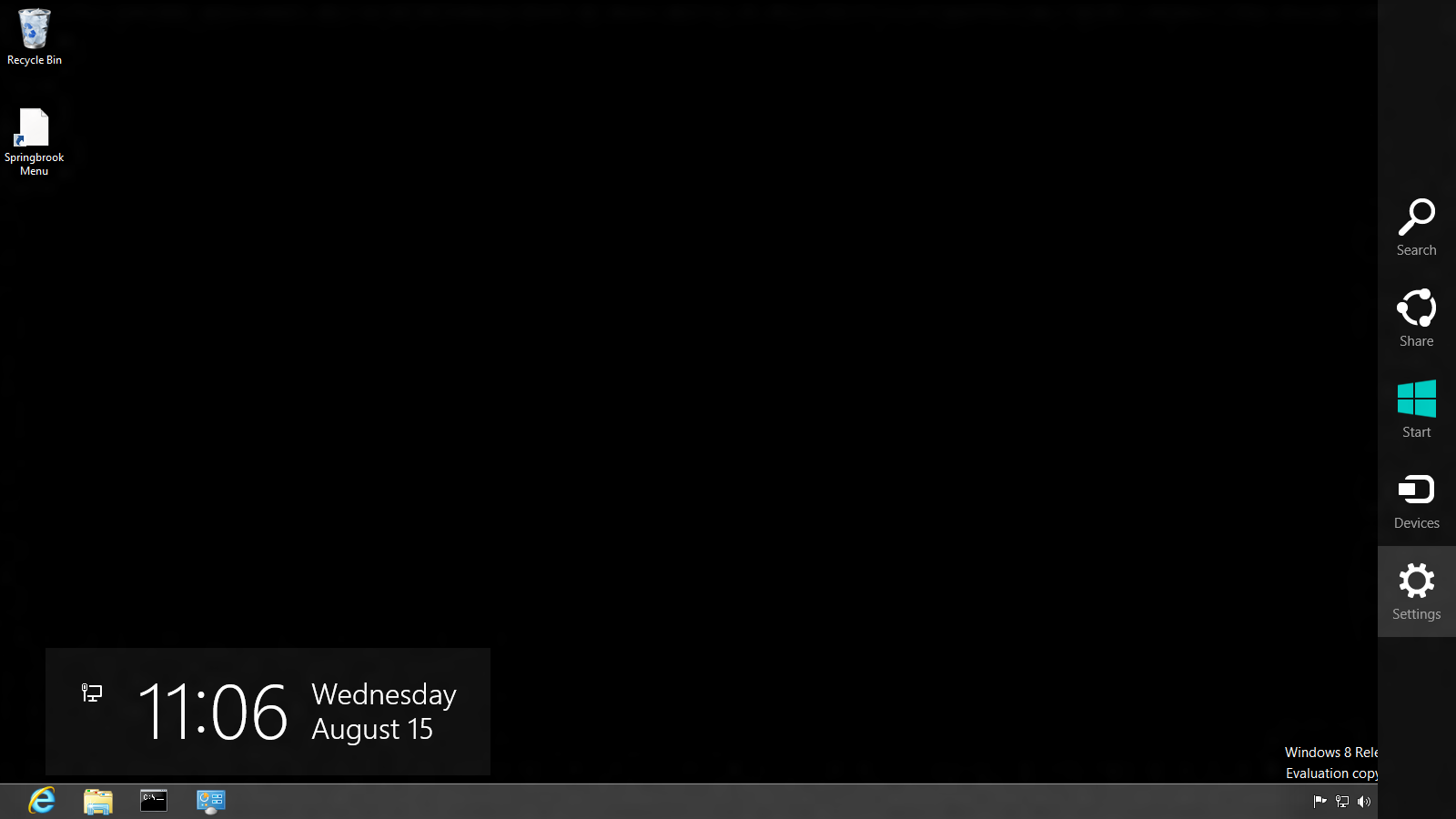
2. When in the desktop, lower your mouse pointer to the bottom right and wait just a second. A sidebar should appear with icons like "search," "devices," etc.


3. Click on settings. After clicking on settings, a turquoise sidebar will appear with various options. Choose "change PC settings"


4. Now you should see the beautiful PC Settings area for Windows 8. There are many settings to configure.


5. Personalize
You have the option of changing settings for the lock screen, start screen and your account picture. Under lock screen, you can change the lock image from a decent amount of images preloaded on Windows 8 or from your own collection of images. The choice is yours, though it's difficult to beat the gorgeous images that come with Windows 8.

You can also change lock screen apps. These are apps that run in the background and will continue to give you updates while in "locked" mode, e.g. the email app will give you a notification of a new email on your lock screen. The three that run in the background by default are: instant messaging, email, and calendar. You can add more. Some even have the option of giving a detailed status like the calendar app.

Start Screen. The settings for this deal with the background art for the start screen and the color. By default the color is turquoise and has the circle art. You have 6 choices to choose from for the background of the start screen: 5 designs and then the option of no design. The color options offer a healthy amount of choices.

Account Picture. Not much to see here. There is the "browse" button for choosing from pictures currently installed on your PC or you can create an account picture if you have a webcam by using the webcam app.

6. Users 
This section deals with user settings for the PC: local and domain. If you're connected to a domain, then you many or may not have privilege to change your domain user settings depending on your domain policies. The first button we see is "connect your Microsoft account" which if chosen will sync your domain settings with your Microsoft account settings. I'm not entirely sure on how this works yet. I've read different things, but my theory is that web-facing apps you personally use will utilize your Microsoft account settings while domain stuff like group policy and such will utilize your domain settings allowing the two settings to work harmoniously together.

The "manage domain users" stuff works like windows 7. When clicked, you will be taken to desktop mode to tinker around with the domain users for the PC. You can also add a user here. When clicked you will be taken through the "add a user" wizard.

7. Notifications 
This is a simple section. You can turn on and off notifications for apps and whether notifications are shown at all or in lock screen or heard.

8. Search
You can choose how search works. Turn on or off features like "show the apps I search most often at the top" and "let windows save my searches as future search suggestions." You can delete search history and turn on or off the apps you want to use search.

9. Share 
This area is limited. The two top options are turn on or off whether you want to see apps most often used at top and show a list of how you share most often. At the bottom you have two apps to choose from for turning on and off their sharing ability: mail and people. Of course, this a fresh install PC. I don't have many apps installed, I'm sure when the list of apps installed grows more will be populated in this "share" list.

10. General
Usually general settings aren't very fun. They are usually confined to date/time, spelling, language, and such and all of that is here in Windows 8's general settings, but there are two very exciting features here in the general settings: refresh your PC without affecting your files and Reinstall Windows. I'm very excited about these two features. The first option "refreshes" your pc without losing, photos, music, and other personal files (system restore?) and the second option is for staring all over - factory fresh. This is very nice.

11. Privacy 
Ah yes the privacy settings. Not much to see here. These are turn on or off functions for the following: apps use my location, let apps access my domain info, and let help improve windows store by sending URLs apps use.

12. Devices 
This section gives a list of devices connected your PC locally and via the network. You can also add a device here.

13. Ease of Access 
In this section there are on/off functions for making the display and audio better for you. Narration is here, length of time notifications are shown, and cursor thickness.

14. Sync Settings
This section is for users who have settings synced between their local/domain account and Microsoft account. There are many options to choose from: personalize, desktop, passwords, ease of access, language, app settings, browser, and other windows settings.

15. Homegroup 
This is for home networks. What's shared, what isn't, and privacy stuff.

16. Windows Update
Check for updates, choose your update method.

I didn't include a screenshot for every setting because that would have been overkill I think. I decided to take a text approach. I did include a screenshot of the main PC settings screen and from that you can probably tell how each section will look and feel. I hope this has been helpful.

Tuesday, August 14, 2012

Daily Security Checklist

I don't fancy myself as one of the greats in the IT world. I know I'm a lowly rookie IT professional just starting out, but I do think my daily security checklist is worth sharing. If you don't have a security checklist you go through each day you might want to create one (heck, steal mine I don't care) just so you will be able to catch things in time and for peace of mind. If I'm able, I go through this checklist first thing before I do anything else unless there's urgent work waiting for me as soon as I step through the double doors (we have a set of double doors at our building - nothing fancy, but it's kind of cool to walk through them all bad and stuff). This checklist is tailored for our network, so I'll be using the names of hardware and software we have. If you don't have the same hardware and software, replace the name for your configuration, e.g. replace Sonicwall with Cisco, Juniper, etc.

Checking the border - Firewall and DNS
Our border firewall is a Sonicwall TZ 210. This bad boy is perfect for our environment: small in physical size, priced just right, excellent security, small learning curve, and boasts a lot of tools for the admin. I check the Sonicwall logs first thing because that is the point between us and the "external." I check the following logs: attacks, anti-spam service, and networking. I then move over to the current connections under the firewall tab. After that, I check out the current data from the security dashboard. I'm not familiar with other hardware/border firewalls, Sonicwall is my area, but I would think Cisco and Juniper have similar types of logs and such. I think it's important to check the logs first thing and the current connections in and out of your network. After a while, you'll notice the "everyday" stuff. Even though it's tempting to not check these things after a week or so of clean data don't do it. Resist!

DNS security
This step might not be a necessary step depending on your configuration. I check our OpenDNS records after the border firewall check because next in line is our DNS security, so that's the logic I follow (maybe it sucks, but it works for me - haha). Anyway, I login to our OpenDNS dashboard and check the logs. It's important to see what network users are accessing and trying to access. I notice a lot of adware and malware blocked by OpenDNS. The cool thing about OpenDNS is their alert system. If OpenDNS has detected malware, you see the alert in big red letters on your dashboard. The only problem is that OpenDNS can't give you the internal IP address, but it's because it's border protection. So, not only is OpenDNS good for web service, but it's security system is nice as well.

Checking the Inside: Network Monitor, Server, and Antivirus
I then move on to internal checks. Network monitoring tools come in handy here, e.g. LANsweeper and Spiceworks, checking vulnerabilities on PCs and non-PCs. LANsweeper has an excellent dashboard view giving you information like the following: pcs not up-to-date, infections, low disk space, recent changes and other cool stuff for non-PC devices. Most network monitoring software does this. I check the necessary reports then move on.

Next, I check the Windows Server 2008 R2 logs in the server manager. If you don't use Server Manager I recommend it for the simplicity. Everything you need for quick checks is there: roles, functions, and event viewer. I check the high priority events then move on to antivirus. We use Kaspersky Small Office Security. I check the scans of all the PCs in the network to make sure there weren't any infections detected and I also check to make sure all of the PCs were updated.

That is my security checklist. I follow the outside to inside approach because it makes sense to me. Usually the biggest threats will come from the outside (threats users don't notice) and the smaller threats are on the inside. If you have any suggestions feel free to comment on this post. I'm usually on the lookout to improve my checklist.


Microsoft Security Essentials and me

New kid on the antivirus block, Microsoft Security Essentials, is silently flexing his muscles and attracting some people over to his yard. Folks are going to it and for good reason because 1) It does a very good job 2) It really is anti-annoying and 3) It's lightweight. Plus, the layout is user-friendly and very attractive because of its simplicity.

1. It does a very good job
Recently, before running a malwarebytes scan on an allegedly malware infested system, I'll run a scan on the pc with the system's currently installed antivirus agent. One particular example I can think of was an AVG 2012 protected system. The system had all of the indicators of a malware infestation. I ran a scan with AVG and it returned a "no infections found" report. I uninstalled AVG 2012, installed MSE and on the initial quick scan, MSE found a few trojans and some adware. I ran a full scan in safe mode just to be safe and the scan was clean. I then ran a Malwarebytes full scan, still in safe mode, and the report was clean. I couldn't believe it. I then started using MSE myself and I install it on client systems. MSE obviously doesn't find infections every time on the first initial quick scan after install. Sometimes, the infestation is deep in the system and something more powerful like Malwarebytes would need to be used, but for general protection I'm learning that MSE is better than others like AVG, Avast, and Panda. It's at least better than their free versions. 

2. It's Anti-annoying and anti-expensive 
"It's true. It's true," said Kurt Angle when asked if MSE was anti-annoying and anti-expensive. I'm just kidding. To my knowledge Angle hasn't been interviewed on MSE (it was funny though, right?). No, but MSE is very silent, lean, and doesn't annoy you unless it has protected you from a threat. It doesn't even tell you when it's been updated like other antivirus programs. 

I received a call from a client last week about a problem. He told me his computer was acting funny, i.e., Internet Explorer was crashing every few seconds. When I arrive at this site, he gives me free reign. Before I do anything, I check to see what is running (down close to his clock) and I see that Avast! and MSE are both running. I remembered installing MSE on his pc a while back, but didn't remember Avast! being on his pc. I asked him if he installed Avast! and he said he did just a week ago because he didn't think he had antivirus running on the system since he wasn't getting alerted every day about something. I laughed and showed him MSE was on his system and that was his protection from threats. He mentioned that he remembered me giving him an overview of that, but thought I didn't install it because he couldn't tell it was even on there. That's one thing that makes MSE better than the rest. It's anti-annoying.

3. Lightweight 
MSE isn't resource intensive. You don't even notice it updating, scanning; you forget it's even there. Compared with Avast! and AVG, it's very skinny.

The only complaint I have is with scan scheduling. You can either schedule a quick scan or a full scan, but not both. Personally, I would like to have the scan schedule be a quick scan Sunday through Friday, then a full scan on Saturday, but MSE (as far as I know) won't let you do schedule like that. It's a very minor flaw. I have my schedule for quick scan 6 days a week, then do a manual full scan once a week. It's no problem.

Download MSE here

Wednesday, August 1, 2012

RAID 5 Hell

In the IT world it's apparently a given that RAID 5 sucks. No, maybe the IT tech you talk to won't give you those exact words when you inquire about RAID 5, but that RAID 5 sucks will be the message behind his words. It's true, it's true. Before this week I hadn't encountered a RAID 5 problem because where I work we have a fairly humble system of simply backing up all data and images to a NAS, so if there is a problem we restore from our backups. I'm not sure this non-RAID system is good for every network so don't think I'm promoting a non-RAID data security plan for you, just know that it's doable and not a terrible plan.

One of my co-IT-workers is off for sick leave this week and probably two more weeks so all calls from his department will go to me. I get a call on Monday that a lady can't remote in to her mapping server. She said she went to the server to see if it was powered on (good idea!) and it was on, but it was stuck at "press F1 to resume." She said that when she hit F1 the next screen was something "...about RAID-5 degraded not bootable" message. My first thought: CRAP. I know that RAID-5 needs at least three hard drives to be operational. If one fails, you can swap the bad drive out with a new drive of identical brand and same size or larger to rebuild the RAID, but if two fail then there is a serious possibility of not being able to rebuild the RAID. In fact, I don't know of anyone rebuilding a RAID-5 array from a two out three hard drive failure; maybe someone out there has and if you have then please tell me the story because I would love to add it to my growing list of tech stories. Anyway, I check things out and after about a hour of doing troubleshooting I come to the conclusion that two of the three hard drives are in fact failed drives. CRAP. I let the user of the server know that I can run to the local Staples, grab two new drives and just see if I can rebuild the array. She says, "cool" and that's the plan. I write down the type of hard drive used in the array: 1 TB Seagate Barracuda 7200 RPM.

I arrive at Staples, they have that type of drive and I immediately do my happy dance. I take the card to the cashier, she calls for a tech to go in the back and grab two drives for me, he comes back to the front with one drive and informs me that they only had one drive left. I then execute my sad face. I go ahead and purchase the one drive. When I get back to work, I inform the user of the happenings. She is somewhat sad. I tell her we can try and rebuild the array with the working drive, the new drive, and one of the failed drives just to see if we can rebuild it (I'm somewhat of a hopeful guy who likes to try almost certain failure scenarios) and to no surprise the RAID would not rebuild. We went through the immediate actions we could take:
* Reinstall Windows Server 2008 R2 on the new drive, add the second drive as a backup drive, and order a third drive and install it when it arrives and use that as a backup drive also. The server would be up and running in just a few hours.
* Wait for a new drive to arrive in at the earliest two days. Install the third drive with only a small possibility of the RAID-5 Array rebuilding. The server would not be up and running soon. Two departments use the server to access maps out on the road and at remote locations.

We went with the first option. From this experience it's plain to me that RAID-5 sucks unless you have a five or six RAID-5 array. I would rather have updated system-image backups of the computer for simple restore options in case of system failure. RAID-6 and RAID-10 I think are nice arrays, but this is the second time I've had problems with Intel's RAID-5 arrays. In the past, before this experience, I was able to shut-down the PC, disconnect then reconnect the sata cables and the array would rebuild itself. I never had an issue with RAID-5 array drives failing. The good thing in this experience is that this mapping server pulled its data from another PC so there was actually zero critical data loss. The only thing lost was availability. The mapping company will have to come down to our location and install the mapping software, but that should be by the end of this week.

RAID 5 or RAID 6?

Thursday, July 12, 2012

PCs Intermittently Lose Connection to Server

Have you had this problem with your network? Over the past 2 1/2 years at work I've had this problem. We have funding/accounting/management software installed on Server1 and users who "use" this software do so via a mapped drive on their PC to Server1. Once in a blue moon a few PCs (not the same ones each time) will lose connection to Server1 (this happened 3 times - odd) completely, i.e. PC can't ping, RD to, or access shares on Server1 and likewise with Server1 to the PCs. The communication between them is dead, over, gone...you get it. How do I solve the problem? Now, the PCs can communicate with other nodes on the network, which they're getting juice to do that from Server2 I suppose. How do I solve the problem? By restarting Server1. I don't want to do that each time though. I want to know why this is happening and if there is another way to fix it.

Keep in mind that when I troubleshot this issue the user was impatient and wanted "it" fixed right away, so I didn't have the time to explore the problem deeply. The following is what I tried in order to keep from restarting Server1.

1. Restarting the problem PC. It didn't work.
2. Rejoining the PC to the domain. I took the PC off the domain, joined it to WORKGROUP then joined it to the domain. This didn't work either.
3. Did a GPUpdate via CMD line. Don't ask...I was scratching the bottom of the idea barrel. Obviously it didn't work.

That's what I tried. By this point the user was huffing and puffing. So, I went ahead and restarted the server and then all was right with the world; at least in the users world. So, I would like to fix this problem without resorting to server restart. Further, I would like to know what causes this to happen. I jumped over to Server Fault to glean wisdom from the sages there and boy did I glean!

Since the problem arises at random times and surfaces very little (3 times over 2 1/2 years) it's going to be difficult to actually troubleshoot this problem, but the guys over at Server Fault told me I could develop an attack plan for when it rears its ugly head again. So the plan, so far, is as follows: to see what is going on during the issue run Wireshark on one of the affect machines and also on Server1; to try and fix the issue disable then re-enable the network card on Server1 or run the following cmd on Server 1: arp -d* (enter). These were just a few suggestions given to me. I thought there would be a network service I could restart under Admin tools\Services, but the guys there said this isn't a service issue.

Anyway, I plan on updating this periodically as I explore the issue. I just posted the question at Server Fault today, so I might get more answers sometime after this posting.

***UPDATE*** 7/18/2012

The problem occurred again yesterday morning and at lunch, but this time it was just one PC that wasn't in the affected group last week. During the problem I did the following:
  • Restarted the switch in her department - didn't work.
  • Enabled then disabled her network adapter and the server adapter - didn't work
  • Updated the driver on her PC this did work for the morning.
The monster reared its ugly head again at lunch.
 
Went to the server, collected wireshark packets between the affected PC and the server. Then, I restarted the server because I know that works. That fixed the issue. I was only able to read through the collected data for a few minutes because other issues came up (I'm the only IT pro - one man crew) that occupied my time for the rest of the shift. Thought about it through the night. Came in this morning, collected network traffic just to see if there were any network process hogs and couldn't find anything bloating the "pipe." Then it hit me: check the kaspersky logs on the server. I checked the network attack blocker logs and found that last week Kaspersky detected dos.generic.synflood "attacks" from the 3 affected machines last week and the affected machine yesterday. When Kaspersky detects things like that, it will cut off communication with the attacking node for 60 minutes. The logs gave the exact time of the issue and the time matched up with the time affected users called me about the issue. I tracked the logs back 30 days and noticed those logs were clean of attacks.

I set the network attack blocker to only block the attacking node for 1 minute. I'm also going to investigate what the synflood attacks could be. At least for now I know why those machines were disconnected from the server. Of course now, I need to figure out the source of those dos.generic.synflood attacks.

Tuesday, July 10, 2012

Black screen hell

Taken from Tips 4 PC (not my work, but I thought it would be useful).

Some common causes of a computer black screen in Windows:

I have to be honest, there are literally hundred’s of reasons why your computer might have a black screen. Hopefully your problem will be something relatively basic.
If you see the screen that tells you your computer had an error, do not choose to start normally, choose to start in safe mode now. See what is safe mode. This is your chance to go the safe way. Many people rush and press to start Windows normally and sometimes this causes a serious problem.

Where is your Monitor plugged in? “My computer screen is black”

The first and most obvious reason for a computer appearing to run but you cannot see the video is the monitor. A common mistake is to plug the monitor into the on-board video plug when you actually have a PCI or AGP video card installed. Trust me I have done this myself. Simply move the plug to the correct position. If you see two blue monitor plugs at the back of the computer or even a blue plug and a HDMI port then try using a different plug.
Obviously you should also check to see if the monitor plugged is actually in firmly. It could have been knocked out if it was not correctly positioned in the first place. This is the simplest computer black screen you can get.

Failing Display adapter or video card can cause a black screen in windows:

Most of the time you can tell if your computer video card is deteriorating by seeing little tell tale signs. Lines appearing or flashing can sometimes occur, however sometimes nothing happens at all. You might turn your computer on and have the dreaded black screen. You can try removing your video card and using onboard video, or replacing the video card to see if that is the problem.
People often also see a computer black screen when they have plugged their computer into a different monitor or even a TV where the screen resolution is not compatible. If it is a simple black screen on your computer it can also be a simple problem to fix, but unfortunately people do not realize this problem and start troubleshooting, which actually gives the computer are serious black screen. When I know that my computer is showing a black screen on my Windows computer and I know that I have just connected it to a different monitor, I immediately restart and press F8. This will take me to the the menu where I will choose enable VGA mode or something similar.

The next reason the computer will not boot up is RAM…or memory:

This can be the cause when your computer has a black screen in Windows.
If your memory is not seated properly (not in), is damaged, or even absent altogether, this can cause a black screen.
  1. If you have no memory installed at all, some computers make no sounds and just show a black screen on startup. Other computers go crazy and beep their head off. I am an expert at this one, as I build so my computers.
  2. When your computer gets a black screen only sometimes, it usually means your ram is on the way out..For example if you boot your computer and it doesn’t work, then go back an hour later, and it does work, your memory is playing up. You can try taking the ram out, gently cleaning it with an antistatic cloth, and replacing it. This may solve your problem. If it does not, then you should try running your computer with another compatible stick of ram installed.
If you plan to open your computer case and remove the ram please read these articles on how to open computer cases safely and Upgrade Memory

Black screen on startup with an amber flashing light

A flashing amber light along with your black screen on startup can be a few things.
  1. Not enough power getting to the motherboard.
  2. A dead power supply.
  3. A bent pin or shorted out USB port causing a problem.

Computer black screen after installing new hardware

Often when computer users install hardware in order to upgrade their own computers they run into problems. If you have just performed an upgrade and then get a black screen, the answer is obvious. Some hardware components may not be compatible with the others in your system. And of course there is always the risk of static electricity damaging your components when you are not an experienced computer repair person.
You might just be installing a new piece of RAM but the best way to troubleshoot this is to go back to where you started from. Always start from the beginning. If your computer was working and you installed something, then take it back out. Think about what you are doing and try again.
This has nothing to with getting a black screen in Windows, as sometimes you have not even installed Windows yet. The hardware must be compatible together and also must be installed correctly.

Leaving a bootable usb flash drive connected to your computer

Yes this can confuse your computer and it won’t know where to boot up. When your computer has a black screen on startup from doing this and you realize this is the problem and remove the USB, the computer just continues to boot normally..this sometimes happens because a computer sometimes recognizes a USB as a CD drive and tries to boot to it. This is the easiest cause of a black screen in Windows as you can simply just take it out and restart your computer.

Corrupting the Boot Sector

A black screen on startup can be so many things! I have learned this lesson the hard way. Never turn off the computer when it is half way through the boot procedure. Even when it is taking forever, or having a major problem you must let it run through if possible. Interrupting it once may be ok, but twice or three times is a no no. After you have carelessly restarted and shutdown a few times the black screen may appear. But this time it may be beyond repair for the average computer user. How to repair a damaged boot sector by replacing the master boot record (MBR) in Windows XP

Black screen on startup – Your CPU is not correctly seated

If your computer has a black screen after transporting one place to another, this is the first place I look. Transporting a working computer, and then not working with a black screen = dislodging the CPU. You can fix this easily by removing the CPU fan and carefully replacing it back in its spot. You may also have to replace some thermal paste between the cpu and heat sink as it stops the cpu from overheating. Be very careful not to bend any pins when dealing with your computer CPU.

Keyboard Faulty

This one surprised me because when there is a problem with the keyboard the computer still boots and says that there is no keyboard detected on the screen. Well this didn’t happen for me. I had a keyboard with a bent pin on the cable, so when it was plugged into the computer, it just plugged in normally. Then the computer black screen on startup appeared, you could here it starting up but no posting beeps, no display, nothing. I even swapped monitors around until finally I tested the keyboard and found the bent pin. I never thought to look there because of the usual default message that appears on the screen when there is something wrong with your keyboard. This is why having a black screen in Windows as a crazy amount of causes and solutions. I really did not expect this one to come out of the woodwork.

Corrupted User Account – Computer Boots to Black Screen

If you have logged into Windows, so you actually saw the login screen, then logged into Windows, this can mean a few different things. One is that it can be a corrupted user account. In this case it would be handy to have another user account to login to. Then you would be able to tell straight away if that was the problem or not. If you can log into another account you will be able to access the corrupted user account through the main hard drive which is usually called C: drive. You will see a folder called “users” and then there will be another folder for the actual username.
If you are using windows XP than the files are in the Document and Settings section.

Notes relating to your computer black screen in Windows:

More options when dealing with a black screen:

Buy the Ebook “Recover Your Computer From a Black Screen” only $7..


We also have a Tips4pc forum where you can chat with others that have the same problem.

If your computer has a black screen, please research your possible problem and be patient as fixing this error is usually left to the experts.
I really hope that your computer black screen has been caused by something simple and is a problem that you can fix quickly without too much stress.

Related Posts