Tuesday, October 23, 2012

My internet broke! What do I do?


You've heard it many times. You get the call from an employee, family member, or friend (sometimes all three-shudder) telling you something like, "I can't get on the internet. Help!" This will vary depending on your crisis stricken caller's techie-ness, of course, but they're basically telling you, "Hey, my internet is broke. Fix it. Now. I need to check my [insert preferred social media site here], then my email, then youtube to watch funny animals and people falling down, then some gossip columns, then amazon."

What do you do?

I remember in college and during my CompTIA studies that the number one, most important thing you do before anything else is interrogate the person you're helping. What were you doing when this happened? What was the last program you used? Did you hear any noises? Did any error messages pop up on the screen? And so on. That's important, sure, but that kind of approach really depends on the person doesn't it? In my experience the bulk of persons tell me what they can't do and then leave me. I used to try and ask questions, but those questions got me nowhere fast or slow. My approach is to ask the person what they can't do and what they want to be able to do. Quick. Simple. Then the person can leave while I try to make that happen.

To fix the "internet is broke" problem we'll make a list. This list I use at for home users and business users.

Determine environment
Is this PC a member of a domain? Is it a type of server? Is it workgroup PC? Is it a stand-alone PC? This is the number one thing to find out. If it's a stand-alone PC then you won't have to go through as many tasks as a PC that is a member of an active directory domain, right?

Renew the IP address
First and foremost, the easiest fix may be renewing the IP address if it's a device that utilizes DHCP. To determine if it is go the command prompt ( start, run cmd.exe for XP users, start search cmd, click on cmd for vista and above users) and enter the following command: ipconfig /all Look for the word 'DHCP Enabled' You should see to the right of that a 'Yes' or 'No.'

If DHCP is enabled, then run the following commands while still in the command prompt: ipconfig /release then ipconfig /renew This could fix the problem

Flush the DNS cache
DNS is darn important for web browsing. Let me say that again: DNS is darn important for web browsing. When a person looks up sites on the internet your device keeps a record of the DNS "stuff" for that site in some files on your device for quicker lookup time when you visit the site again. Sometimes, the DNS information (cache for us techies) stored on your device can get "messed up" (corrupted, no longer valid information) and this can cause you to not be able to visit certain sites. Well, this can be fixed. While a simple reboot can do the trick, entering following command at the command prompt is quicker: ipconfig /flushdns If successful the cmd prompt will return the following: Windows IP Configuration Successfully flushed the DNS Resolver Cache

Now, this method will work for a stand-alone PC, but what if the PC is a networked PC? For example, if it's a PC connected to a router. Well, the router also has a DNS cache. If that is corrupted, then it needs to be fixed. Reboot (turn off, then turn on) the router to fix the problem.

What if the PC is connected to a domain that has a DNS Server? The DNS server also has a DNS cache. How do you clear the DNS cache on a Windows DNS server?
  1. Open DNS in your Windows Server
  2. In the tree click on the DNS server(s)
  3. On the action menu (or right clicked menu), click clear cache.
Reset IE to Default Settings
These steps work for IE 7, 8, and 9.

In IE, go to Tools > Options
The Options windows opens. Click on Advanced. You should see a Reset button in the lower right portion of the window under a heading that reads, "Reset Internet Explorer Settings." Click on the Reset button.
In the Reset Internet Explorer Settings Dialog box, click on the Reset button.
After a little bit, IE will be return to the default state. 

Dive Into the Windows firewall configuration
For Windows 7 users, click start and in the search bar type 'windows firewall' then click enter. For Windows XP users go to control panel then find Windows Firewall.

Try disabling rules/exceptions one at a time, checking internet searching after disabling each one. You might find that a certain rule/exception is blocking internet all together or certain sites.


Reset TCP/IP
If you can't connect to the internet, the TCP/IP protocol may be corrupted. If it is, then you'll need to reset this protocol using the netsh utility via command prompt logged in as an admin.

1. Open command prompt as an admin (start, run cmd.exe for XP users, start search cmd, right click cmd, run as admin for vista and above users).
2. At the command prompt, enter the following command and then press ENTER: netsh int ip reset c:\resetlog.txt  By the way, you don't have to specify a directory path for the log file. If you don't want to, drop the "c:\" from the "resetlog.txt" portion of the command.
3. Reboot the computer.

Repair Winsock
If resetting TCP/IP didn't work, for example, if you're still getting "page cannot be displayed" when trying to access a site, or if Filezilla isn't working correctly then it may be a Winsock problem. Run the following command in command prompt as an admin to repair winsock netsh winsock reset catalog After repairing winsock (you're taking it back to default configurations) you may, MAY, have to reinstall services that use winsock.

Reset the default hosts file *copied and pasted from Microsoft*
To reset the Hosts file back to the default, follow these steps:
  1. Click Start, click Run, type %systemroot% \system32\drivers\etc, and then click OK.
  2. Rename the Hosts file to Hosts.old.
  3. Create a new default hosts file. To do this, follow these steps:
    1. Right-click an open space in the %WinDir%\System32\Drivers\Etc folder, point to New, click Text Document, type hosts, and then press Enter.
    2. Click Yes to confirm that the file name extension will not be .txt.
    3. Open the new Hosts file in a text editor. For example, open the file in Notepad.
    4. Copy the following text to the file:

      For Windows XP or for Windows Server 2003
      # Copyright (c) 1993-1999 Microsoft Corp.
      #
      # This is a sample HOSTS file used by Microsoft TCP/IP for Windows.
      #
      # This file contains the mappings of IP addresses to host names. Each
      # entry should be kept on an individual line. The IP address should
      # be placed in the first column followed by the corresponding host name.
      # The IP address and the host name should be separated by at least one
      # space.
      #
      # Additionally, comments (such as these) may be inserted on individual
      # lines or following the machine name denoted by a '#' symbol.
      #
      # For example:
      #
      #      102.54.94.97     rhino.acme.com          # source server
      #       38.25.63.10     x.acme.com              # x client host
      
      127.0.0.1       localhost
       
      For Windows Vista or for Windows Server 2008
      # Copyright (c) 1993-2006 Microsoft Corp.
      #
      # This is a sample HOSTS file used by Microsoft TCP/IP for Windows.
      #
      # This file contains the mappings of IP addresses to host names. Each
      # entry should be kept on an individual line. The IP address should
      # be placed in the first column followed by the corresponding host name.
      # The IP address and the host name should be separated by at least one
      # space.
      #
      # Additionally, comments (such as these) may be inserted on individual
      # lines or following the machine name denoted by a '#' symbol.
      #
      # For example:
      #
      #      102.54.94.97     rhino.acme.com          # source server
      #       38.25.63.10     x.acme.com              # x client host
      
      127.0.0.1       localhost
      ::1             localhost
       
      For Windows 7
      # Copyright (c) 1993-2006 Microsoft Corp.
      #
      # This is a sample HOSTS file used by Microsoft TCP/IP for Windows.
      #
      # This file contains the mappings of IP addresses to host names. Each
      # entry should be kept on an individual line. The IP address should
      # be placed in the first column followed by the corresponding host name.
      # The IP address and the host name should be separated by at least one
      # space.
      #
      # Additionally, comments (such as these) may be inserted on individual
      # lines or following the machine name denoted by a '#' symbol.
      #
      # For example:
      #
      #      102.54.94.97     rhino.acme.com          # source server
      #       38.25.63.10     x.acme.com              # x client host
      
      # localhost name resolution is handle within DNS itself.
      #       127.0.0.1       localhost
      #       ::1             localhost
    5. Save and then close the file.
Network Devices
If this PC is connected to a network then the problem may very well be another PC or device causing the internet problem. Doing the above suggestions all day long won't fix the issue if another device on the network is the culprit.

Monday, October 15, 2012

How to Use Google Maps on iOS6

Have you heard? No Google maps app on Apple iPhone's iOS6. Yep. That's right. This makes sense for Google, of course, because Google is in competition with Apple. Basically Google is saying, "Hey, competitor, make your own mapping app." While the Google maps app is not available for the iphone, there is a workaround so don't despair. No, it's not the app, but it's still google maps.

Go to Safari. Type in Google in the address bar. Once you're there, click on "maps." You might be asked by the browser if you'd like to add a shortcut icon to your home screen. Do it and now you'll be able to access Google maps on your newly updated iphone. No, it's not perfect and accessing Google maps through the web isn't as fluid as the app version; however, currently, this is the only way to use Google maps on your iOS6 smartphone.

Wednesday, October 10, 2012

Change the Interface DHCP Lease Is Bound To in Sonicwall

* Note: this blog post is about Sonicwall firmware version "SonicOS Enhanced 5.8.1.5-46o"

So you've went through the VPN wizard. It's running. You have people using it. It's great. Oh wait! What's that? In your security log you see "attacks" labeled as "IP Spoof." Looking at the log, it shows the user logging in on interface X0, but their IP on your network is a X2 address. Sonicwall thinks it is an IP spoof. You see the external IP. You recognize the external IP is from one of your remote sites. It's no threat, but you would like for Sonicwall to not log it anymore. How do you fix it? I'm glad you asked.

Example setup.
X0\ LAN\ Static\ 192.168.10.XXXX\ you use this for DHCP for your wifi users
X1\WAN
X2\ LAN\ Static\ 192.168.1.XXXX\ this is your production network that doesn't utilize DHCP every user on this network has a static IP

In your VPN setup, Sonicwall binds the DHCP lease to the interface that uses DHCP (genius idea right?). So you've built this VPN connection. On the client's machine, you install the Sonicwall VPN client software to connect to the network. You want her to be on the production network though, so you change the virtual adapter the Sonicwall client uses on her machine to a 192.168.1. address. Now, she is able to access production network resources like she wanted. Great.

Back home, you see in the security logs, the IP Spoof stuff. How is that fixed? In the Sonicwall admin panel, go to VPN\DHCP over VPN. Click the dropdown box, select Remote Gateway then click configure.


You should see the following, "DHCP Lease Bound To:" and a dropdown box next to that with the various interfaces. Following our example above, choose the X2 interface so the client will be on the production network when logged in using the VPN.

Then click OK. You might see a goofy red message, but it won't keep you from making the change to the DHCP lease binding.

Tuesday, October 9, 2012

Hardware Firewall Is a Must

From TechRepublic's recent "10 Things" blog:

6: Deploy a hardware-based firewall Let’s face it: The built-in Windows firewall is simply not sufficient. If you want real security, you need a dedicated firewall on your network. This firewall will be a single point of entry that will stop many more attempted breaches than the standard software-based firewall will. Besides, the hardware-based fire will be far more flexible and customizable. Look at a Cisco, Sonicwall, or Fortinet hardware firewall as your primary protection.  

This is an excellent, excellent, (did I say excellent?) recommendation. If you or your business is connected straight to your modem without any border protection from the external world then you're in jeopardy and by jeopardy I don't mean the game show, I mean trouble. Why? Because your PC or group of PCs have an external IP. Your device doesn't have a bouncer to keep the bad guys and crap out of your house. You don't have that extra layer of protection that a connected device needs to operate more securely. Now, don't think a hardware firewall will make you invincible. I don't want to paint the wrong picture. I do mean to say that a hardware based firewall along with other security measures can make you more secure. 
 What are the benefits of a hardware based firewall?
   
1. NAT
*cue hissing* Some techs don't think NAT is a security feature, but I do. There is some mystery regarding NAT. Was it meant for security? Was it not meant for security? I think it's up in the air. Even so, I think it's fair to say that NAT gives *some* security in that it gives your device a local IP instead of your public, external IP. Intruders, the green ones conservatively speaking, won't know your device's IP which does help. No, it's not a super excellent security feature, but it's just another layer of protection that is nice to have while we're still mostly in a IPv4 world. 
 

2. Rules
With a hardware based firewall, you can make firewall rules which are rules that you create to allow the traffic you want coming in and leaving your network. You can make as many or as little rules as you like. Don't want RDP sessions coming in to your network? Block it. Don't like WMI packets coming in? Block those too. It's customizable. Some techs start by blocking everything then slowly unblocking ports as the days progress. For example, a tech had most ports blocked. He downloaded WoW was able to run some of it, then realized he needed to open certain ports for the game, so he did. That's what I mean by some techs block everything, then slowly open ports when the situation occurs. You don't need everything open right out of the gate. Only open ports that you need open. 
 

3. Logs
Yeah, Windows and other OSs have log views, they're limited to your system though. With a hardware firewall you'll have logs informing you who and what was trying to access your network. You'll see your rules working. You'll see intrusions prevented, this app allowed, another app blocked and so on. It's helpful. It's encouraging. You can see your firewall at work or not at work. You'll see what's getting in, out, and blocked. 
Those are three reasons I can think of right away for getting a hardware firewall. You don't have to spend hundreds of dollars on a hardware firewall either. Routers come equipped with firewalls. For my home I use a Netgear wireless router that is excellent for my home setup. The firewall provides good protection, customization, and it's easy to use. Buy one. 

 Netgear WNR3500L this link gives you the specs and has links to the stores it's sold at.   

* I didn't make the image used in this blog post. I found it in a google search from this website.

Thursday, September 27, 2012

How to Install Microsoft Security Essentials

Ok. Here we go. This is the best real-time antivirus scanner around. AVast! comes in second, but MSE is lightweight and knows Windows better than any other antivirus sytem.

First things first. Uninstall your "old" scanner. I don't know which one you had so I'll just use Norton as an example.

Click on the start button (the windows logo located at the bottom left of your screen on the task bar).
In the search bar, type 'programs and features' then click on the programs and features icon.

in the programs and features windows, find Norton (or whatever antivirus you already have installed), single click on it, then click uninstall (it's located between organize and change)
Follow the uninstall process.
Reboot if necessary.
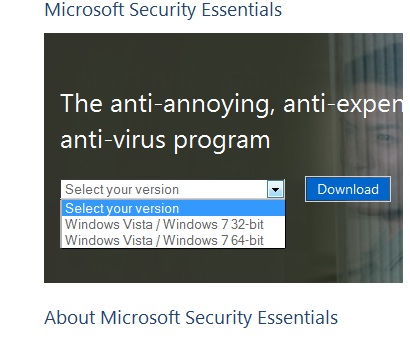
Now, click on the following link http://windows.microsoft.com/en-US/windows/products/security-essentials
select your version of windows 7 (most likely 64 bit)


click on download.
Save the file.
Then run the file.
Take the defaults.
If all goes well, you'll soon be protected from malware by MSE. Yay you!

Monday, September 17, 2012

Try Everything Before You Quit - How to Reset Internet Explorer

No, this isn't a good philosophy for life, but it is a good philosophy for technology repair.

A client told me she was bringing in her mother's PC for me to fix. Her mom has att.yahoo as her homepage in Internet Explorer 8. Apparently, ATT at Yahoo! has changed the look and feel of their homepage (new code and stuff). Since that change, my client's mom can't access the att.yahoo page. She has the site set as her homepage in IE 8. When she starts IE 8, the infinity circle runs for 5+ minutes (she let it run without closing it out and she said only a tiny picture had loaded after 15 minutes). Well, my client brought in the PC for me to check out. I asked her if she had opened a new tab in IE 8 to try and access another site. She said, "No, I didn't try that." So, that was the first thing I did after booting into Windows.

I was able to open google and do a google search (I searched pizza if you're wondering). I was also able to open Yahoo!. From that, I knew IE 8 wasn't hijacked by a browser hijacker or something else. During the opening of other sites, att.yahoo was still trying to load. I closed the att.yahoo tab, then I installed Firefox, ran it, and was able to access att.yahoo just fine in Firefox. My assumption that IE 8 was "just old" and that att.yahoo's new homepage was too "advanced" for IE 8 was beginning to be a reality for me.

I told my client that Firefox loaded site just fine and that IE 9 probably would too. I asked her if she wanted me to update IE 8 to 9. She gave me the green light because she thought IE 9 would at least be more familiar to her mom than Firefox and I thought that was probably true. So, I installed IE 9. Guess what? IE 9 had trouble loading the new homepage too. What? Honestly, I was stumped. Another thought came to mind though. Perhaps IE was broken in some way? Maybe a reset would fix this issue? So that's what I did. I ran the IE reset. Guess what? Att.yahoo loaded just fine, even the same speed as Firefox. I don't know what specifically the problem was between IE and att.yahoo's new homepage, but I do know running the IE reset fixed the issue. I wonder if the IE reset in IE 8 would have fixed the issue for 8? That question ties in the title post that you should try everything before you quit on the technology you're working on. I should have tried the IE reset before upgrading to IE 9.

Want to know how to run the IE reset? These steps work for IE 7, 8, and 9.

In IE, go to Tools > Options

The Options windows opens. Click on Advanced. You should see a Reset button in the lower right portion of the window under a heading that reads, "Reset Internet Explorer Settings." Click on the Reset button.

In the Reset Internet Explorer Settings Dialog box, click on the Reset button.

After a little bit, IE will be return to the default state. 

Friday, September 14, 2012

Dropbox says not enough space, but there is plenty of space

So you have 30 MB left in Dropbox storage. You try to store a 20 MB file in the Dropbox folder in your (windows) explorer and get a message like: Can't sync examplefile.xxx...out of space in your Dropbox Oh no! What do you do? Two solutions that may solve your problem.

This may sound like a stupid question, but do you have enough space on your physical drive? Since Dropbox acts as a folder on your physical drive there has to be enough space on that drive as well for it to sync and for it to be stored in your Dropbox folder. 


Have you cleared the Dropbox cache? This is the path in Windows Explorer (assuming you're using Windows 7) %HOMEPATH%\Dropbox\.dropbox.cache type that line in the location bar in Windows Explorer and it should take you to the dropbox cache folder. I think the cache folder is deleted automatically every 3 days, but if you just recently deleted a lot of files this could be taking up valuable space in your dropbox folder.

I hope one of these helps.